Upload one image
Drop in a JPG, PNG or WebP up to 12 MB. Posters, product shots, illustrations, logos and character art split most cleanly.
Click or drag an image here
Sign in to upload your image
Try with an example
Model
Picks 2–17 layers and names them · 7 credits per layer
We hold up to 119 credits, charge 7 per layer returned and refund the rest.







From our own runs
2–17
named layers per HD run
Up to 1536 px on the long edge
2–8
layers you choose in Standard
About 640 × 640 px each
≈94 s
median time per HD run
Across 8 example images
PSD + ZIP
from every run, no watermark
Failed runs are refunded automatically
Run times measured on the example images on this page; layer counts and sizes come from the model settings.
Watch the AI find every layer
A flat image goes in. The model finds each element and lifts it onto its own layer. These are replays of our own runs on AI-generated example images.
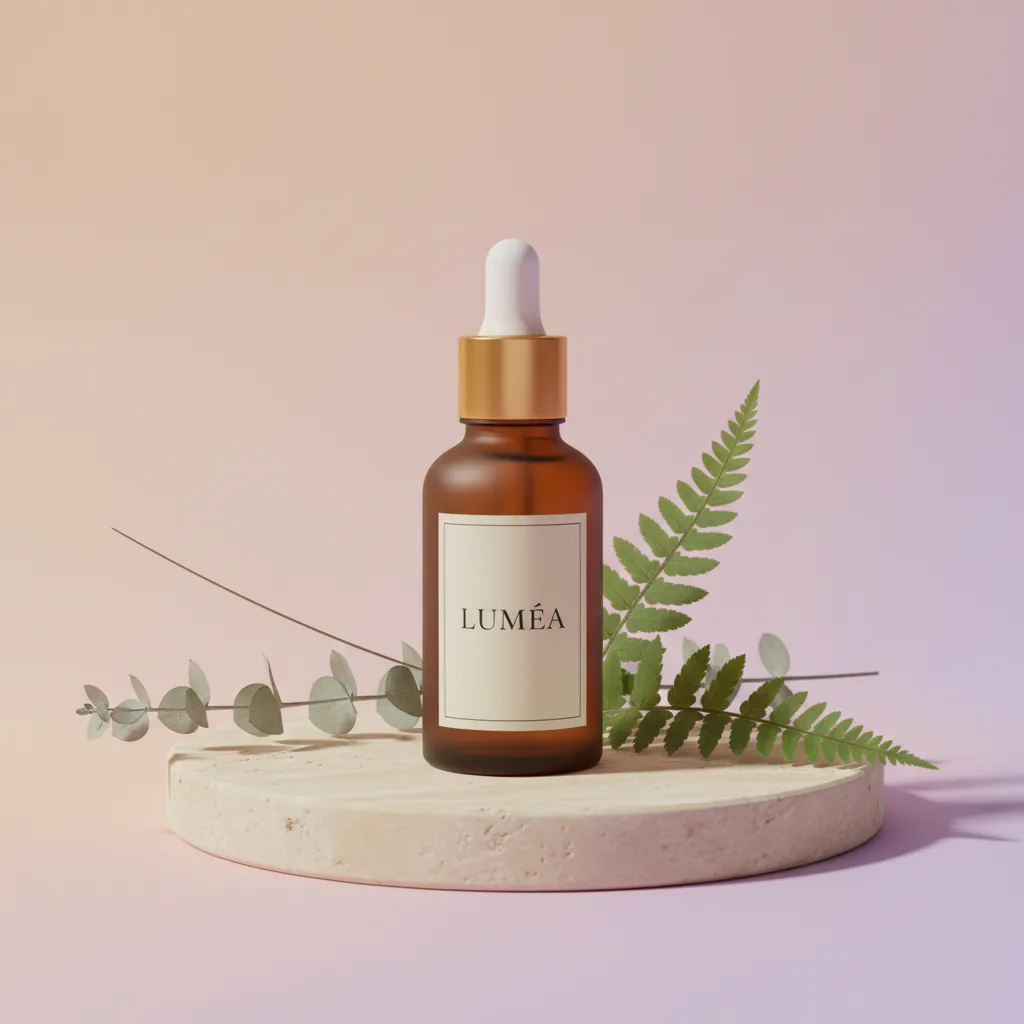
Detected layers
8 layers · 81 s
Wall time we measured on our own Seedream 5.0 Pro Layerize run, replayed faster here.
Real examples
Each image below was AI-generated, then split by the same PSD converter you will use. Toggle layers, tilt the stack in 3D, compare HD with Standard and download the files to check them in your own editor.
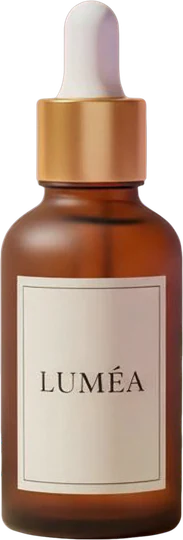
Layers8
Every PNG is full-canvas, so the layers line up.
AI-generated exampleSeedream 5.0 Pro Layerize · 8 layers · 81 s
How it works
Three steps from one flat image to a stack of editable layers. Most runs finish in one to two minutes.
Drop in a JPG, PNG or WebP up to 12 MB. Posters, product shots, illustrations, logos and character art split most cleanly.
HD decides how many layers the image needs (2–17) and names each one, at 7 credits per layer. Standard returns exactly the 2–8 layers you choose for 10 credits.
Check every layer in flat, 3D or parallax view, then download a layered PSD or a PNG ZIP of full-canvas transparent layers that line up when stacked.
Tools
Layer pages run HD (7 credits per layer) or Standard (10 credits per run); the editing tools charge one flat price per image. The browser tools are free and need no account.
 7 credits/layer
Split any picture into transparent layers you can move, hide and recolor.
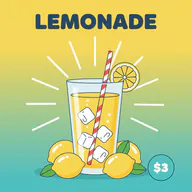 7 credits/layer
Turn a flat JPG or PNG into a layered PSD that opens in Photoshop.
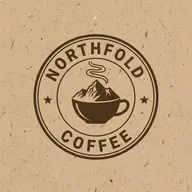 7 credits/layer
Separate a logo's badge, wordmark and background into layers.
 7 credits/layer
Separate the product from its backdrop for listings, banners and ads.
 7 credits/layer
Split character art into hair, body, props and background as a base for rigging.
 5 credits
Name what to remove, from people to power lines, and get the gap filled in.
 5 credits
Erase tourists, photobombers and passers-by, and the background behind them is filled in.
 8 credits
Clear captions, signs and date stamps from photos you own or have permission to edit.
 8 credits
Change the background, season or light of a photo with one sentence.
 8 credits
Write a prompt, get an image, then split it into a layered PSD.
Wrap PNG, JPG or WebP files in single-layer PSDs, one or many at a time.
Open a PSD or PSB online, toggle its layers and export them as PNG.
Flatten PSD or PSB files to PNG, or save every layer as its own file.
Batch-convert PSD and PSB files to JPG, with your choice of quality and background colour.
Turn PSD and PSB files into a PDF, one page per file or one per layer.
The free tools run in your browser: no account, no credits, and your files never leave your device. They don't create new layers; that takes the AI PSD converter.
Use cases
Every picture here is an AI-generated example that we split with the PSD converter; the chip shows how many layers came back.
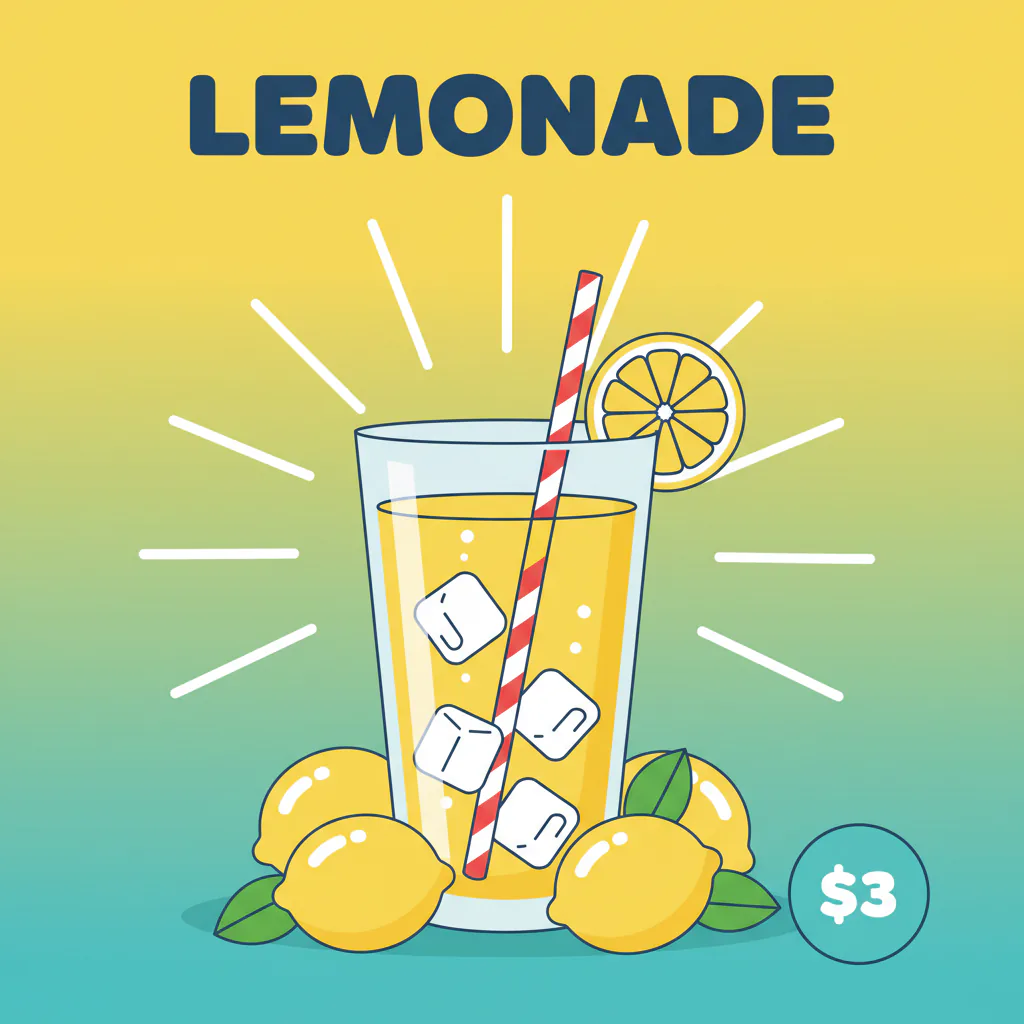 11 layersAI-generated example · Seedream 5.0 Pro Layerize
Move the headline, swap the price badge or resize for another placement without rebuilding the design.
8 layersAI-generated example · Seedream 5.0 Pro LayerizeLift the product off its backdrop and place it on marketplace or banner backgrounds without cutting it out again.
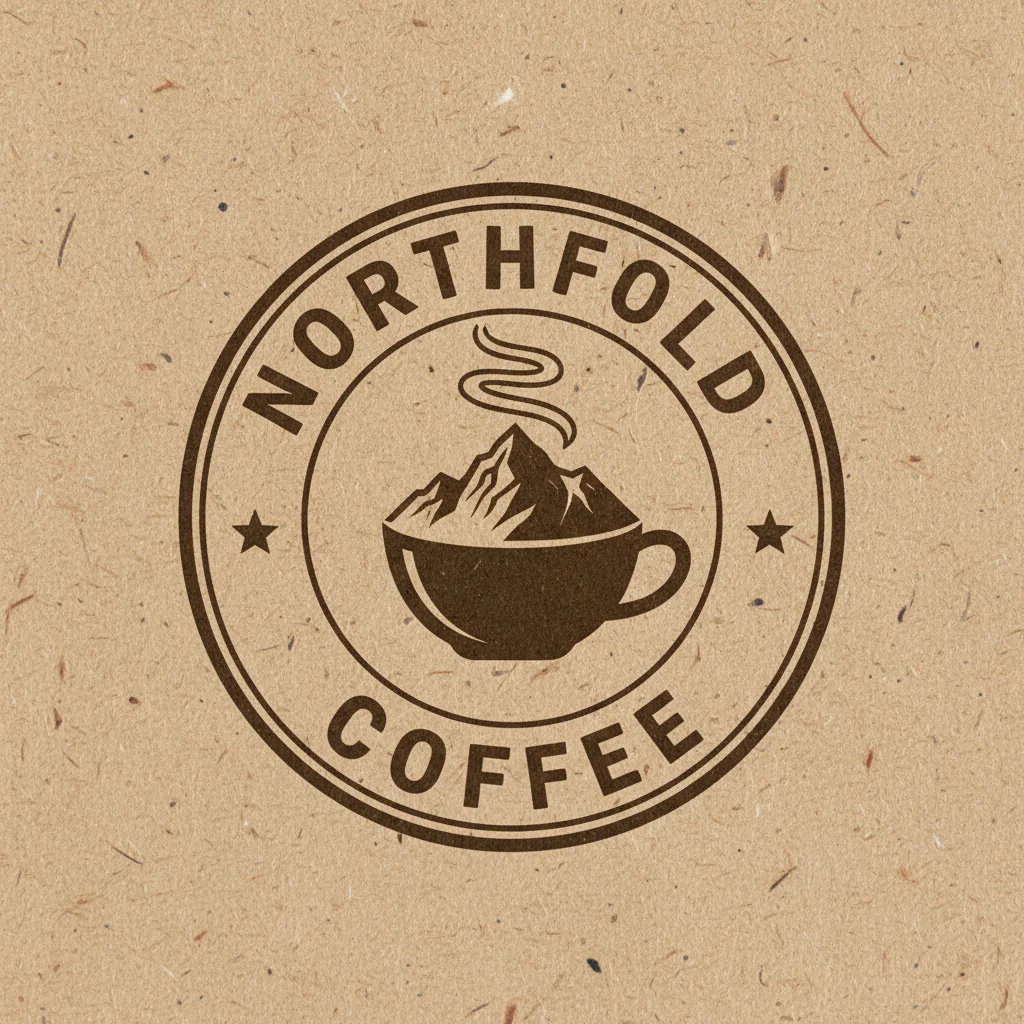 8 layersAI-generated example · Seedream 5.0 Pro Layerize
Separate the badge, wordmark and textured background so each part can be recolored or reused.
 8 layersAI-generated example · Seedream 5.0 Pro Layerize
Get hair, body, props and background on separate layers as a base for Live2D or Spine. Expect to refine the parts by hand.
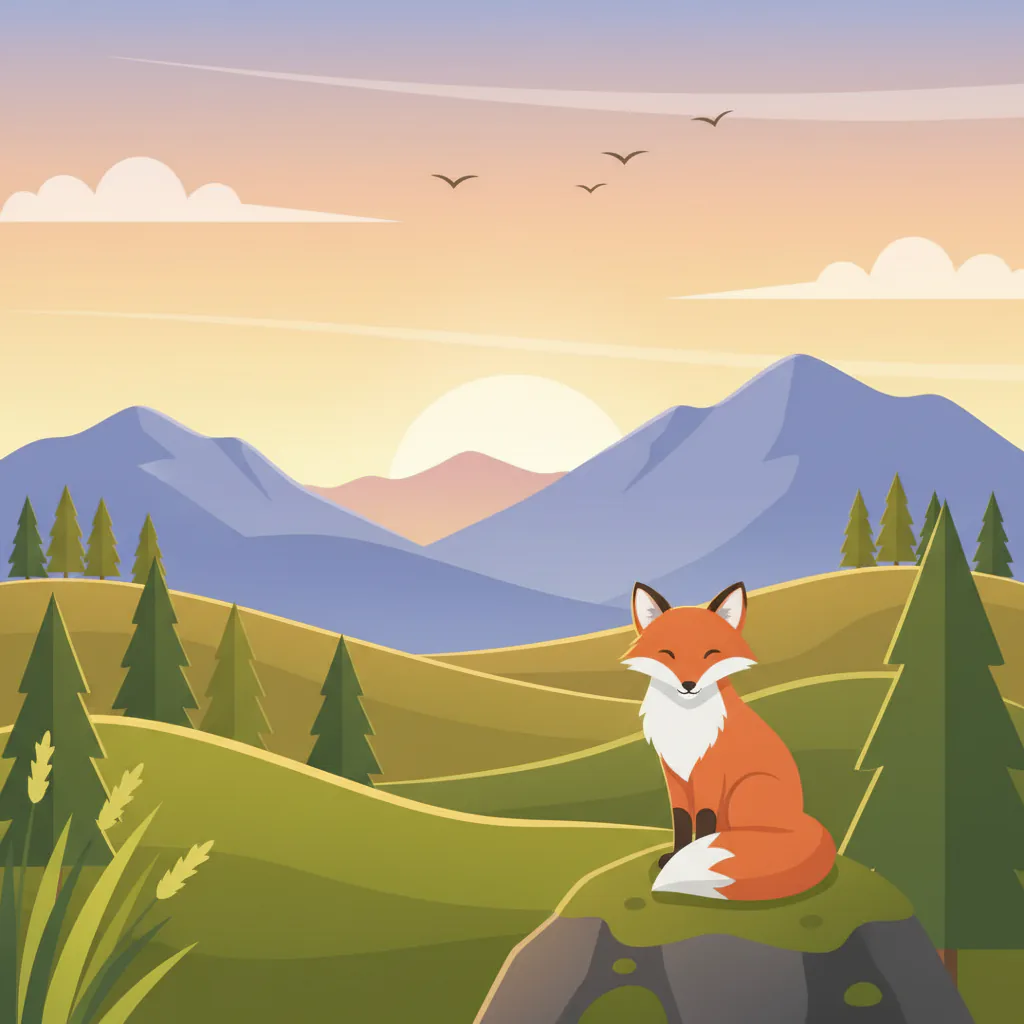 12 layersAI-generated example · Seedream 5.0 Pro Layerize
Sky, mountains, hills and foreground come apart, ready to offset in After Effects, CSS or a video editor.
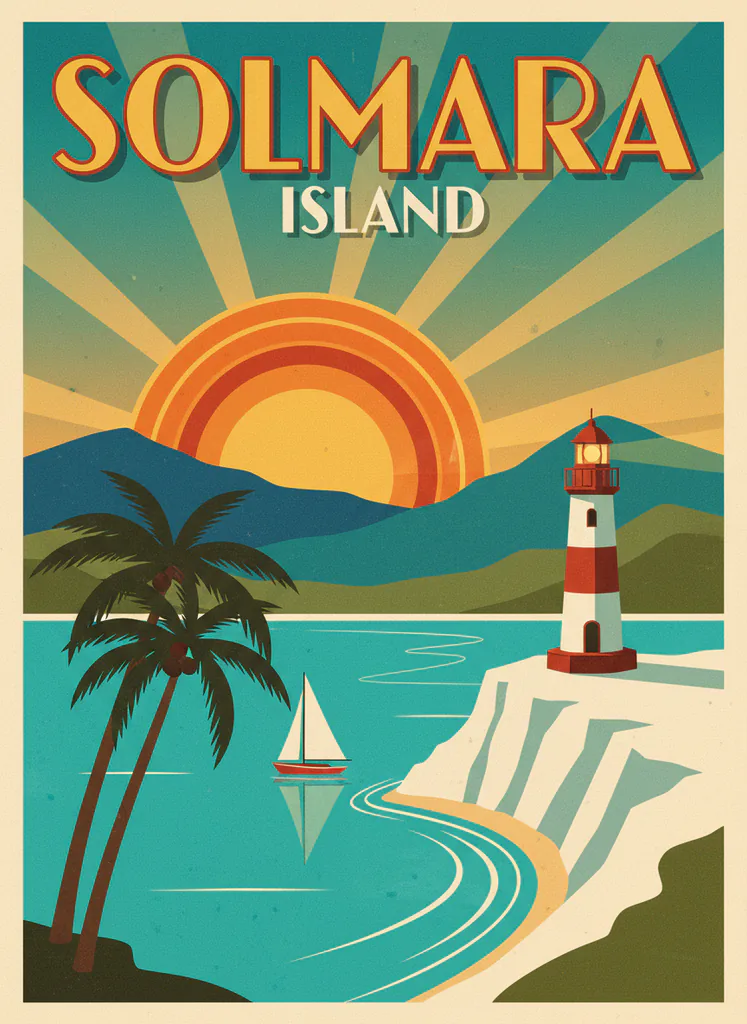 11 layersAI-generated example · Seedream 5.0 Pro Layerize
Generate an image, split it, then repaint only the part that went wrong instead of re-rolling the whole picture.
Know before you run
Knowing this saves credits. These notes come from our own runs of the PSD converter on both models.
Posters and ads: flat shapes, clear edges and separate text blocks
Illustrations: distinct planes such as sky, hills and foreground
Product shots: product, plinth and backdrop come apart well
Logos on backgrounds: badge, wordmark and texture usually come apart
Anime and character art: clean line art and flat color separate easily
Glass and transparent objects: whatever shows through can land on the wrong layer
Smoke, fog and soft glows: there is no edge to cut along
Fine hair on a busy background: loose strands may stay behind
Tiny body text: small type can blur or merge with nearby shapes
Heavy overlap: tightly stacked objects may end up on one layer
Headlines and labels land on their own layer as an image of the words, not live type. To change the wording, hide that layer and retype it in your editor.
Standard is coarser than HD and may keep several objects on one layer. A failed run is refunded automatically, but a finished one is charged, so a quick look at this list pays off.
Compare
The PSD converter runs two models. HD names its layers and keeps more detail; Standard is a flat price for a coarser split. Manual masking is still the most precise route, and by far the slowest.
| Criteria | DefaultHDSeedream 5.0 Pro Layerize | StandardQwen Image Layered | Manual masking in Photoshop |
|---|---|---|---|
| Layers | 2–17, chosen by the model | 2–8, you choose | As many as you mask |
| Layer names | Named by the model, e.g. “Title text” | Numbered | You name them |
| Layer size | Up to 1536 px on the long edge | About 640 × 640 px | Your original size |
| Area behind objects | Usually painted in on the background | Usually filled in | You paint it back yourself |
| Text | Pixels, usually on its own layer | Pixels, may share a layer | Can be retyped as live text |
| Time per image | About 1–2 minutes | About 1–2 minutes | Often an hour or more |
| Cost | 7 credits per layer returned (at most 119) | 10 credits per run | Software license + your time |
| Best for | Posters, ads and files you will keep editing | Quick drafts and simple images | Pixel-perfect client deliverables |
PSD guides
Short reads on what a layered Photoshop file actually stores, how it compares with flat image formats, and how to open one for free.

Format
What a .psd actually stores, how it compares with PNG, TIFF and JPG, and the limits worth knowing.

Explainer
Where .psd files come from, what sits inside one, and what to do when a designer hands you one.
How-to
Four routes compared — a browser editor, GIMP, Adobe’s own app, or a flat preview — and what each one loses.
FAQ
Straight answers on cost, the two models, output size and what you can do with the layers.
Still have a question?
Write to us and we'll get back to you: support@images2layers.com
AI runs use credits. HD costs 7 credits for each layer the model returns: we hold up to 119 credits when the run starts (you need at least 28) and refund the unused part when it finishes. Standard costs 10 credits per run at any layer count. New accounts start with 0 credits; credit packs and subscriptions are on the pricing page.
HD (Seedream 5.0 Pro Layerize) decides how many layers the image needs, from 2 to 17, names each one and works at up to 1536 px. Standard (Qwen Image Layered) returns exactly the 2–8 layers you choose at about 640 px: up to 4 without a subscription, up to 8 with any subscription. Standard is cheaper but coarser and may keep several objects on one layer.
HD works on a base of up to 1536 px on the long edge; each element comes back cropped to its own area and is placed on the full canvas when you export, so everything lines up. Standard layers are about 640 × 640 px. Neither model keeps your original resolution, so upscale separately if you need large prints.
Not as live type. Headlines and labels come out as pixels, usually on a layer of their own, so you can move, recolor or hide them. To change the wording, hide that layer and retype it in the font you want. Logos arrive as pixels too, not vector shapes.
JPG, PNG or WebP, up to 12 MB. You preview every layer in the browser, then download a layered PSD, a PNG ZIP of full-canvas transparent layers, or any single layer as a PNG. Nothing carries a watermark.
Photoshop, Photopea (free, in the browser), GIMP, Affinity Photo and Krita all open the layered file with its stack intact. If your tool can't read PSD, take the PNG ZIP: every layer is a transparent PNG on the same canvas, so they line up when stacked.
A run that fails is refunded automatically. A run that finishes is charged, so check the list of what splits well before trying a tricky image. If the split isn't what you wanted, crop away unrelated edges and try again, or switch to Standard and change the layer count. Anything else falls under our refund policy.
Your upload and its layers are stored in our cloud storage so you can preview and download them, and the image is sent to our AI provider to be processed. Nothing is published. To have your files deleted, email support@images2layers.com; the privacy policy has the details.
Yes. Exports carry no watermark and you can use them in commercial work, as long as you own or have the rights to the image you upload. Converting an image doesn't grant rights you didn't already have.
The AI PSD converter needs credits; there is no free plan or trial. Three browser tools are free and need no account: PNG to PSD, the PSD viewer and PSD to PNG. They run on your device and never upload your files, but they don't split images into new layers. Exploring the examples on this page is free too.
Sign in, upload a JPG, PNG or WebP, and the AI PSD converter hands back a layered Photoshop file and a PNG ZIP. No watermark, and failed runs are refunded.