
Remove People From Photos — AI Person Remover
The quickest way to remove people from photos: upload one and say who should go, like “the tourists behind me”, “the person on the left” or “the photobomber”. The AI erases them, rebuilds the background and returns one clean photo for 5 credits.
Step 1: Upload your photo
A photo you took or have the right to edit.
Click or drop a photo here
JPG, PNG or WebP · up to 12 MB
Sign in or create an account to upload
Presets
Runs need an account and credits (5 per run). Failed runs are refunded automatically.
Example
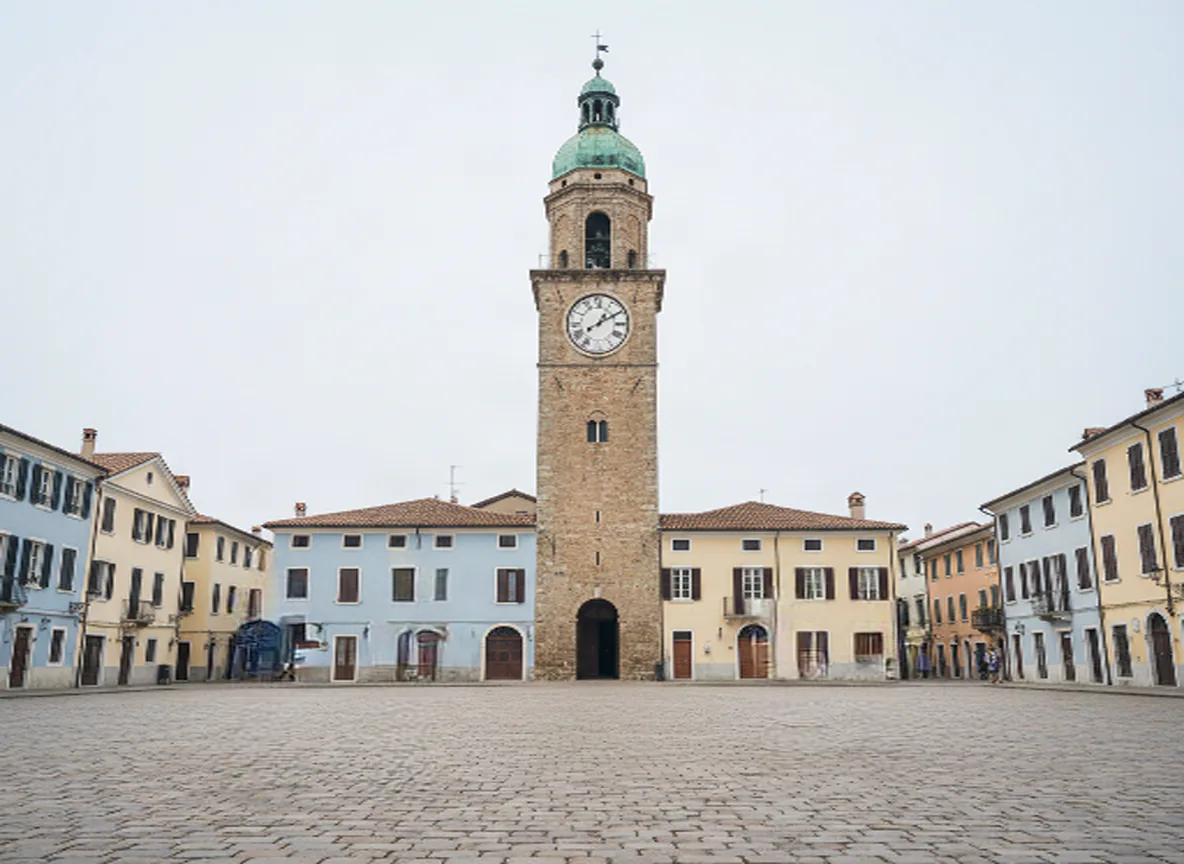
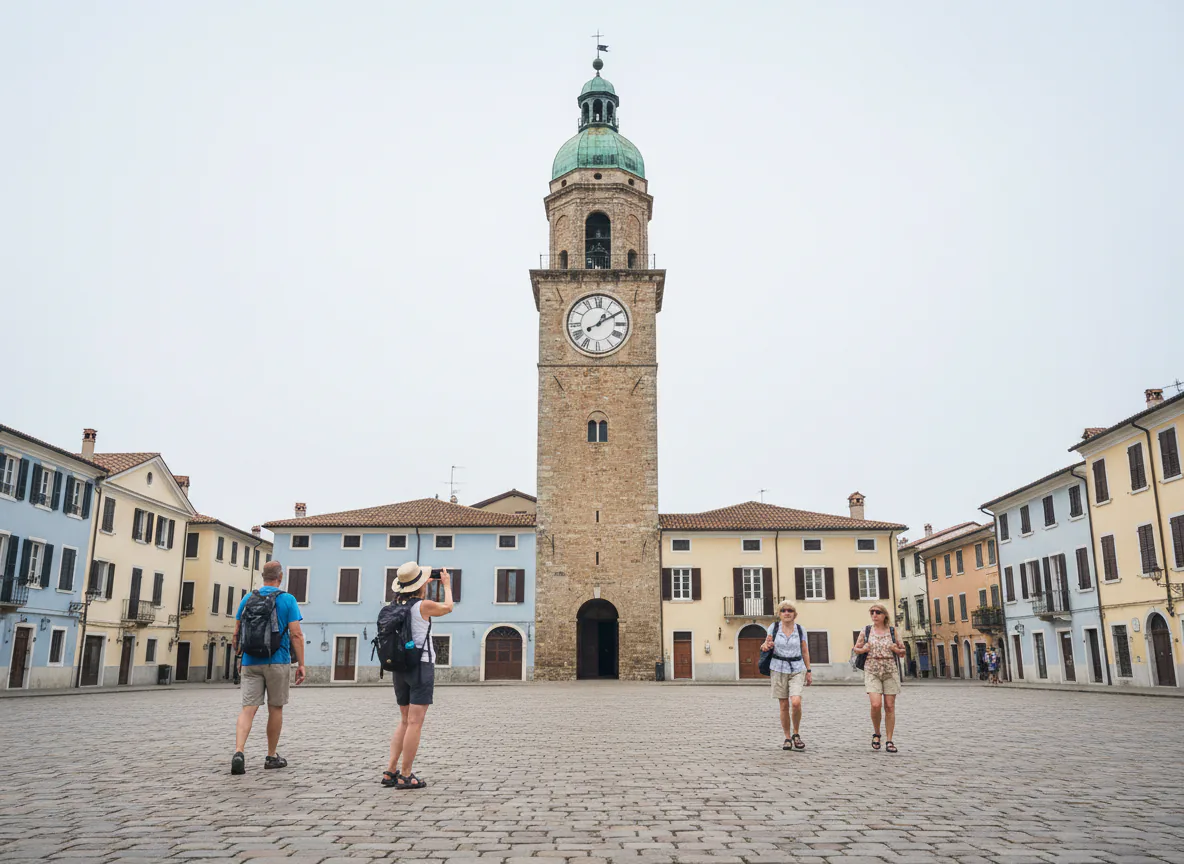
Prompt: “the four tourists and their backpacks”
How it works
How to remove people from photos in three steps
No brush, no lasso and no layer mask. You describe the people, and the AI does the selecting and the filling in.
Step 1
Upload the photo
Sign in and add a JPG, PNG or WebP of up to 12 MB. Holiday shots, street portraits, event photos and product shoots with someone in the way all work.
Step 2
Say who should go
Describe them in plain words, up to 200 characters: where they stand, what they wear, what they are doing. Or tap a preset such as “the tourists behind me”.
Step 3
Compare and download
Drag the slider to check the result against your original, then download it. Someone still there? Run it again on the result and name them.
Step by step
How to remove a person from a photo
The model removes exactly who you describe, so the words you type do most of the work. Here is the full walkthrough, then how to point at the right person.
Step 1: Pick the best frame
Choose the shot where the person you want gone is fairly small, clear of your main subject and not covering much of the background. The less the AI has to invent, the cleaner the fill.
Step 2: Crop first if you can
Someone cut off at the edge of the frame? Cropping them out in your phone’s photo editor is faster and leaves nothing to guess. Save the AI for people inside the scene.
Step 3: Upload and name them
Upload the photo, then describe the person by position and clothing: “the woman in the yellow coat on the right”. If a shadow stays behind, run the result again and name it.
Step 4: Work through a crowd in rounds
People standing together can go in one prompt (“the two people on the bench”). If they are spread out, remove one group, click “Edit this result” and name the next. Each round is 5 credits.
Step 5: Check the details, then download
Look closely where the person stood: leftover feet, a shadow, a reflection in a window. If something remains, run the result again and name just that part.
Tips for naming people precisely
Say where they are
Left, right, centre, foreground, background, behind the subject. Position is the fastest way to single out one person among several.
“the person on the far right”
Mention what they wear
A colour and one piece of clothing usually settles it when people stand close together.
“the man in the red cap”
Check the shadows
Soft shadows close to the person usually go with them. Long, hard shadows in bright sun often stay behind: run the result again and name the shadow.
“the long shadow next to the bench”
Name a group as one thing
One prompt can cover a group. Describe it as a whole instead of listing each person.
“the group of tourists behind me”
Describe what they are doing
Walking, sitting, holding a phone: an action helps when clothing is hard to make out.
“the man walking past the fountain”
Keep it short
One clear phrase beats a paragraph. Name only who should go; there is no need to list what stays.
“the photobomber behind the couple”
Real results
Remove people from photos: before and after
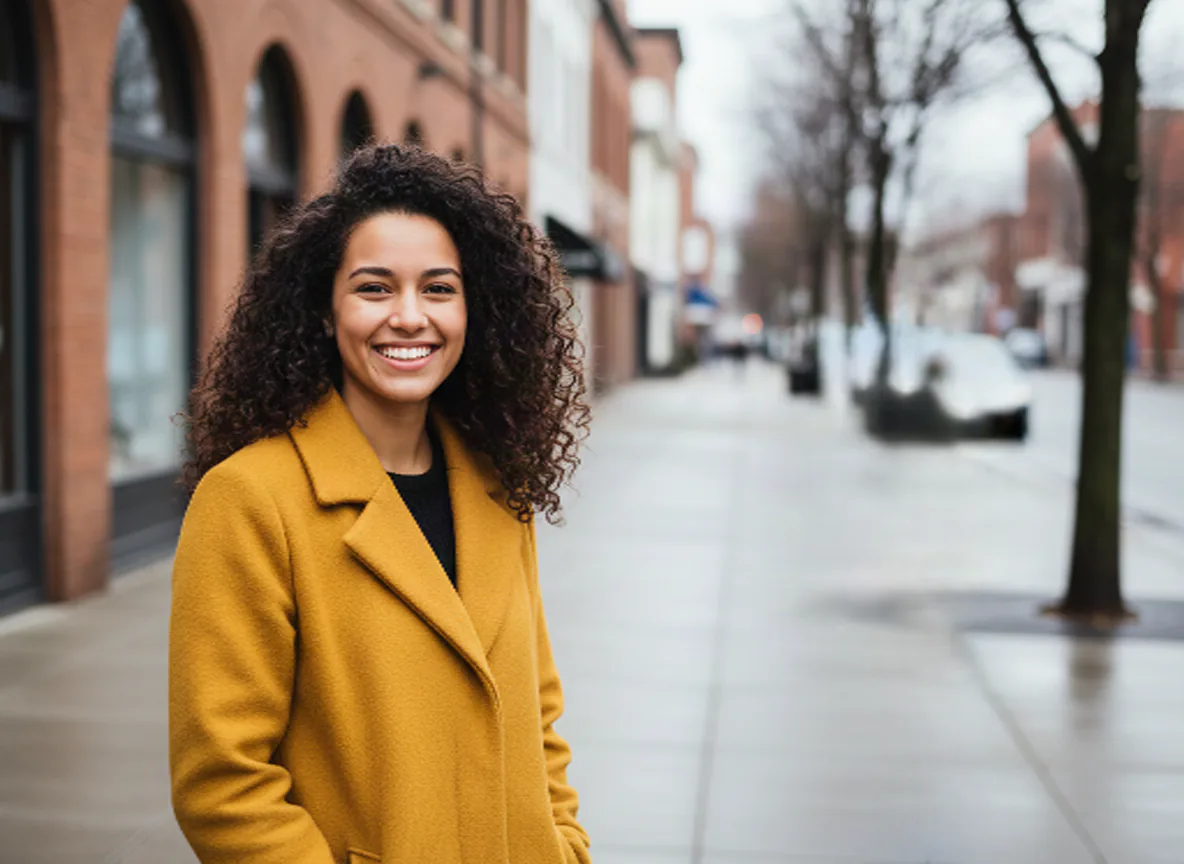
Each photo was generated for this page, then run through the person remover with the prompt shown under it. Drag the handle to compare.
- AI-generated example · fal object removalBeforeAfter
Clock tower plaza, tourists removed
Prompt: “the four tourists and their backpacks”
Measured run time: 10 s
- AI-generated example · fal object removal
 BeforeAfter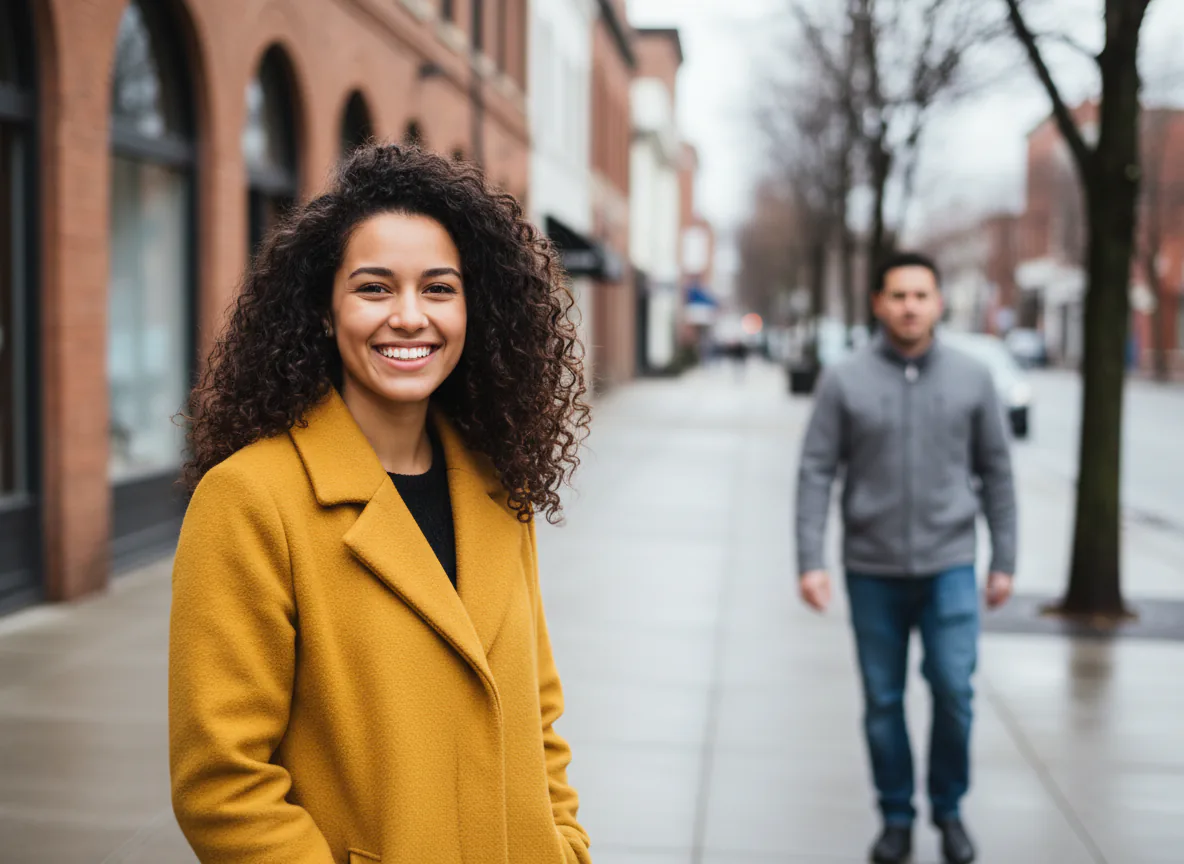
Street portrait, passer-by removed
Prompt: “the man in the grey jacket”
Measured run time: 10 s
- AI-generated example · fal object removal
 BeforeAfter
Beach, people in the background removed
Prompt: “people in the background”
Measured run time: 25 s
Honest limits
When you can remove people from photos cleanly, and when it is hard
The AI paints in what it thinks was behind each person. That works best with a few people who stand apart from your subject.
Works well
- One to a few people who don’t touch or overlap your main subject
- Passers-by, tourists and photobombers in the background or middle distance
- People standing on simple ground such as sand, grass, paving or water
- Soft shadows right next to the person
- A group that stands together and can be named as one
Struggles with
- People who overlap or touch the person you want to keep, like an arm around a shoulder
- Dense crowds: dozens of people leave too little real background to rebuild from
- Reflections in windows, mirrors and water, which often stay behind
- People in front of detailed, repeating backgrounds such as signs, railings or leaves
- Large figures close to the camera that cover much of the frame
A finished run costs 5 credits whether or not you keep the result; only failed runs are refunded. For a crowd, two or three smaller runs usually beat one big one.
FAQ
Questions about removing people
What to know before you remove people from photos: cost, crowds, shadows, phones and which photos you may edit.
Still have a question?
Write to us and we'll get back to you: support@images2layers.com
Upload the photo, type who should go (for example “the tourists behind me”) and press Remove. The AI finds those people, erases them and fills in the background. You get one finished image to compare with your original and download, usually within a minute.
5 credits per run, whether that run removes one person or a whole group. New accounts start with 0 credits; credits come from a one-time pack or a monthly or yearly plan. If a run fails, the 5 credits go back to your balance automatically.
Yes. Name them together (“the people in the background”, “the two men on the left”) and one run removes them all. When people are spread across the frame, two or three short runs usually give a cleaner result than one long prompt. “Edit this result” runs the tool again on the output.
Soft shadows close to the person usually go with them. Long, hard shadows in strong sun often stay behind, and reflections in glass, mirrors or water are less reliable. If one is left, run the result again and name just that shadow or reflection.
The background behind a person was never photographed, so the AI invents a plausible fill. Busy patterns, lettering and large gaps are the hardest to rebuild. Try a tighter description, crop closer, or pick a shot where the person covers less of the scene.
Yes. The tool runs in the browser on iPhone and Android: upload from your camera roll, name who should go and save the result back to your phone. The result keeps your photo’s size where the model allows; very large photos can come back smaller.
Photos you took or have the right to edit. Don’t use it to mislead: removing people from news photos, documents or evidence, or making images that misrepresent someone, breaks our terms of service.
The person remover returns one flat image. If you would rather have people and background as separate layers, use “Split into layers” on your original: the HD splitter (Seedream 5.0 Pro Layerize) returns named, transparent layers, billed 7 credits per layer, and you can hide or delete anyone in Photoshop or Photopea.
Remove people from photos, keep the moment
Upload a photo, say who should go, and get a clean shot back for 5 credits. Failed runs are refunded automatically, and nothing is watermarked.