
How to make a VTuber model: the pipeline at a glance
Short answer:
Draw a front-facing character, separate every moving part (hair, eyes, brows, mouth, face, body, arms) onto its own layer, and save a layered PSD. Import it into Live2D Cubism Editor, rig it with deformers, parameters and physics, export it for runtime, then load the model in VTube Studio and track it with a webcam or phone.
There are two kinds of VTuber avatar: 2D models rigged from an illustration, and 3D models built like game characters. This guide covers the 2D route that most anime-style VTubers take. A 2D VTuber model is built in Live2D Cubism Editor and runs in VTube Studio, which supports Live2D Cubism models only.
- Design — a character drawn so it can be rigged.
- Separate — every moving part onto its own layer.
- Export a PSD — in the format Live2D can import.
- Rig — the parts in Live2D Cubism Editor.
- Export the model — as runtime files.
- Go live — in VTube Studio with face tracking.
Step 1: Design a rig-friendly character
Rigging can only move what was drawn, so the design decides how hard every later step is. When you plan how to make a VTuber model, draw with the rig in mind from the first sketch:
- Face the camera — A front-facing pose, or a slight three-quarter view, lets the rigger fake head turns in both directions.
- Keep the arms clear of the body — Arms resting down and a little away from the torso can be rigged or hidden without repainting the body behind them.
- Frame it bust to waist — A stream overlay mostly shows the head and shoulders, so detail below the waist rarely pays off.
- Use readable hair shapes — Hair is split into front, side and back pieces that sway with physics. Clear clumps are easier to cut and move than a mass of fine strands.
- Keep things off the face — Bangs over the eyes, hands near the face and props crossing the body all create hidden areas that someone has to paint later.
- Work large — Draw at a generous resolution. You can scale parts down when they are packed into textures, never up.
Step 2: Separate the parts
Live2D calls this material separation: dividing the illustration into parts such as eyelashes, eyeballs and outlines. Its manual is blunt about the trade-off: the more detailed the division, the better the model. Every part goes on its own layer, and everything hidden behind it is painted in, because whatever was underneath shows the moment the head turns or the mouth opens.
A typical 2D VTuber model is split into at least these parts:
- Hair — front bangs, side locks and back hair as separate layers, often cut further into strands that sway on their own.
- Eyes — for each eye, the white, the iris, the highlight, the upper and lower lashes and the eyelid. The white and iris must be drawn in full under the lids so the eye can close.
- Eyebrows — left and right, separate from any hair that covers them.
- Mouth — upper and lower lip, the inside of the mouth, teeth and tongue, so the rigger can open the mouth and change its shape.
- Face — the skin base, blush, nose and ears.
- Neck and body — a neck that continues up under the chin, so a turning head never shows a gap, plus the torso and clothing.
- Arms and hands — upper arm, forearm and hand as separate pieces if they will move.
- Accessories — hair clips, earrings, ribbons and hats on their own layers if they should sway or swap.
This step usually takes longer than people expect. If your character already exists as one flat illustration, an AI split can make the first, coarse cut for you, as the next section shows.
Where Images2Layers fits: a head start on step 2
Separating a finished illustration by hand starts with the big pieces: lifting the character off the background and pulling hair, body and props apart. That first cut is what our AI layer split does. The HD model reads the image and returns whole parts on transparent, named layers at up to 1536 px on the long edge, and the background usually comes back with the area behind the figure painted in.
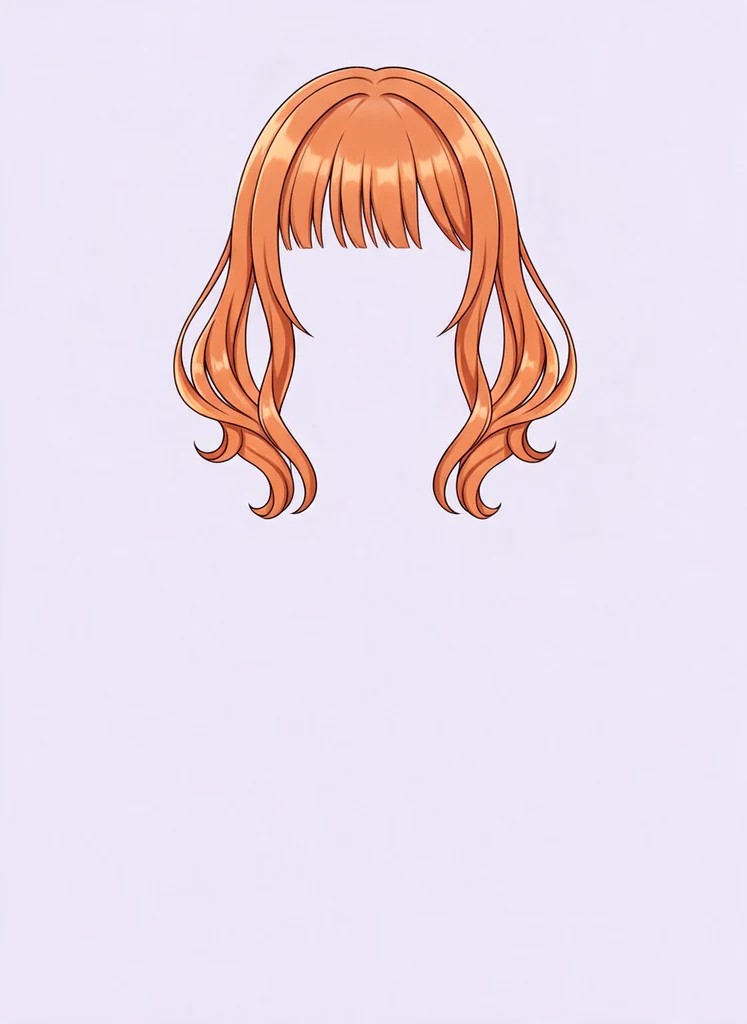
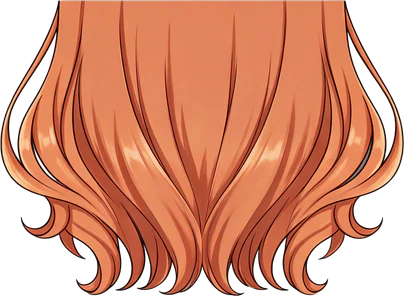
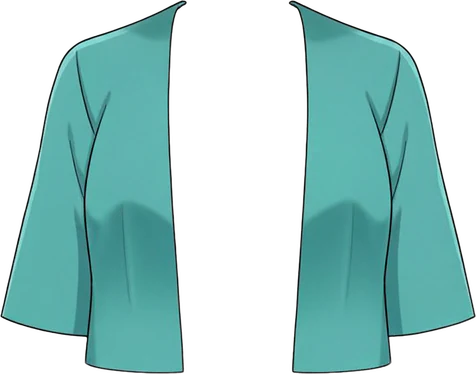

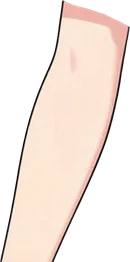





Layers12
Every PNG is full-canvas, so the layers line up.
To be clear about what this saves and what it does not:
| Task | AI split (HD) | By hand |
|---|---|---|
| Character off the background | Yes | Clean up the edges |
| Hair, body and large props on their own layers | Often | Refine and name them |
| Background painted in behind the figure | Usually | Touch up |
| Eye whites, irises, lids and lashes | No | Yes |
| Lips, inner mouth and teeth | No | Yes |
| Hidden skin and hair under other parts | No | Yes |
| Rigging, physics and tracking | No | Live2D Cubism and VTube Studio |
HD output is up to 1536 px on the long edge, which is fine for planning a rig and building a prototype. Draw or upscale the final parts at a higher resolution.
Step 3: Export a layered PSD for Live2D
Live2D Cubism Editor imports a PSD and turns each layer into something it can move, so the file has to follow its rules. According to the Cubism manual, a PSD that breaks any of the first three will not import at all:
- PSD format — not PSB, TIFF or a layered PNG. If your file is huge, see what a PSB file is and bring it under the PSD limits first.
- RGB colour mode — not CMYK or grayscale.
- 8 bits per channel — not 16 or 32.
- sRGB colour profile — other profiles can shift colours on import.
- One layer per part — merge each part’s line art, colours, shading and clipping masks into a single layer, and apply layer masks.
- Unique layer names — duplicate names cause confusion later in the rig.
The manual also suggests keeping two files: a working PSD with folders and masks intact for later fixes, and a flattened import PSD with one layer per part. Live2D only guarantees PSDs saved from Photoshop or CLIP STUDIO PAINT, so save the import file from one of those. Before you import, open it in our free PSD viewer to check the layer names and order in seconds.
Step 4: Rig the model in Live2D Cubism
Drag the import PSD into the Modeling view of Cubism Editor. Each layer becomes an ArtMesh, a mesh of points the editor can bend, so in general your PSD has as many layers as the model has ArtMeshes. Rigging then builds movement on top in layers of its own:
- Meshes — each ArtMesh gets a mesh, generated automatically or edited by hand. More points around eyes and mouth give smoother deformation.
- Deformers — warp deformers bend a group of meshes together, such as a whole face turning, and rotation deformers swing parts around a pivot, such as the head on the neck.
- Parameters — the sliders that drive everything. Live2D’s standard list includes Angle X, Y and Z for head turns and tilts, Eye Open and Eyeball X/Y for each eye, Mouth Open/Close and Mouth Deformation for smiles and frowns, Body Rotation X, Y and Z, and Breath. Keep the standard IDs, such as ParamAngleX and ParamMouthOpenY; VTube Studio relies on them in step 6.
- Key forms — for each parameter you pose the model at its key values, for example head turned left, centred and turned right, and Cubism interpolates between them.
- Physics — hair, ribbons and clothes sway through physics settings driven by head and body movement. Live2D notes that its hair-sway parameters for front, side and back hair are usually set by physics.
Rigging is where most of the time goes, and where a first VTuber model teaches the most. Test every parameter in Cubism’s preview, especially blinks and mouth shapes, before you move on.
Step 5: Export the model for VTube Studio
When the rig works in the preview, export your VTuber model with File > Export For Runtime > Export as .moc3 file. VTube Studio’s documentation asks for an SDK 3.0 or newer export version, the physics file exported together with the model, and Export Types set to SDK.
The export folder holds a few files that must stay together:
- .model3.json — the index file that points to everything else. VTube Studio looks for this one.
- .moc3 — the rigged model itself.
- Textures — the parts packed onto one or more texture sheets.
- .physics3.json — the physics setup. Without it the hair will not sway.
Step 6: Load it in VTube Studio and start tracking
VTube Studio runs on Windows and Mac through Steam, and on iPhone, iPad and Android. Copy the export folder into its Live2DModels folder (the Steam version has a button that opens it), start the app, pick your model and accept Auto-Setup. Auto-Setup maps face tracking to Live2D’s standard parameter IDs; if you renamed them, map them by hand in the model settings.
For tracking, you have several options:
- Webcam — tracking built into the PC and Mac app. It is free to use but shows a watermark unless you buy the optional Remove Watermark add-on.
- iPhone or iPad — face tracking on a device with Face ID or an Apple A12 chip or newer, sent to the PC app over your network.
- Android — a phone that supports Google ARCore.
- Microphone — voice-based mouth movement, useful on its own or alongside face tracking.
Then capture the VTube Studio window in your streaming software, and fine-tune sensitivity and smoothing until blinks and mouth movement feel natural. Your 2D VTuber model is ready to stream.
How much a 2D VTuber model costs, and how long it takes
Commission or do it yourself
Deciding how to make a VTuber model usually starts with a budget. Many VTubers commission the art and the rigging separately, from an illustrator and a rigger, often with the part separation included in the art order. Prices vary widely with detail, the number of expressions and each artist’s demand, so collect several quotes and read each artist’s terms of use before you pay. Doing it yourself costs time instead of money: drawing, separating and rigging a first model is usually a project of weeks, not an afternoon.
Live2D Cubism: FREE vs PRO
Cubism Editor starts as a 42-day trial of the PRO version and then carries on as the FREE version. FREE is enough for a simple model, but it has hard caps:
| Limit | FREE | PRO |
|---|---|---|
| ArtMeshes (about one per PSD layer) | 100 | No limit |
| Deformers (warp + rotation) | 50 | No limit |
| Parameters (incl. blend shapes) | 30 | No limit |
| Parts (folders) | 30 | No limit |
| Texture sheets | 1, up to 2048 px | No limit |
| Warp deformer divisions | 9 × 9 | 100 × 100 |
From Live2D’s FREE vs PRO comparison, checked October 2026. If a model goes over a FREE limit, the FREE version cannot save it. FREE may be used commercially only by general users and small businesses with annual sales under 10 million yen.
A model with finely split hair and many expressions passes 100 ArtMeshes quickly, which is why detailed models are usually rigged in PRO. VTube Studio itself is free to download; the paid add-ons remove the webcam watermark or add extras.