Remove Text From Image — Clean Captions, Signs and Labels

Upload a photo and the AI erases its captions, date stamps, sign lettering or price tags, then rebuilds what was behind them. Name the text you want gone, or leave the box empty to clear all of it. One clean image for 8 credits.

Step 1: Upload your image

An image you own or have permission to edit.

Click or drop a photo here

JPG, PNG or WebP · up to 12 MB

Sign in or create an account to upload

0/200

Presets

Runs need an account and credits (8 per run). Failed runs are refunded automatically.

Example

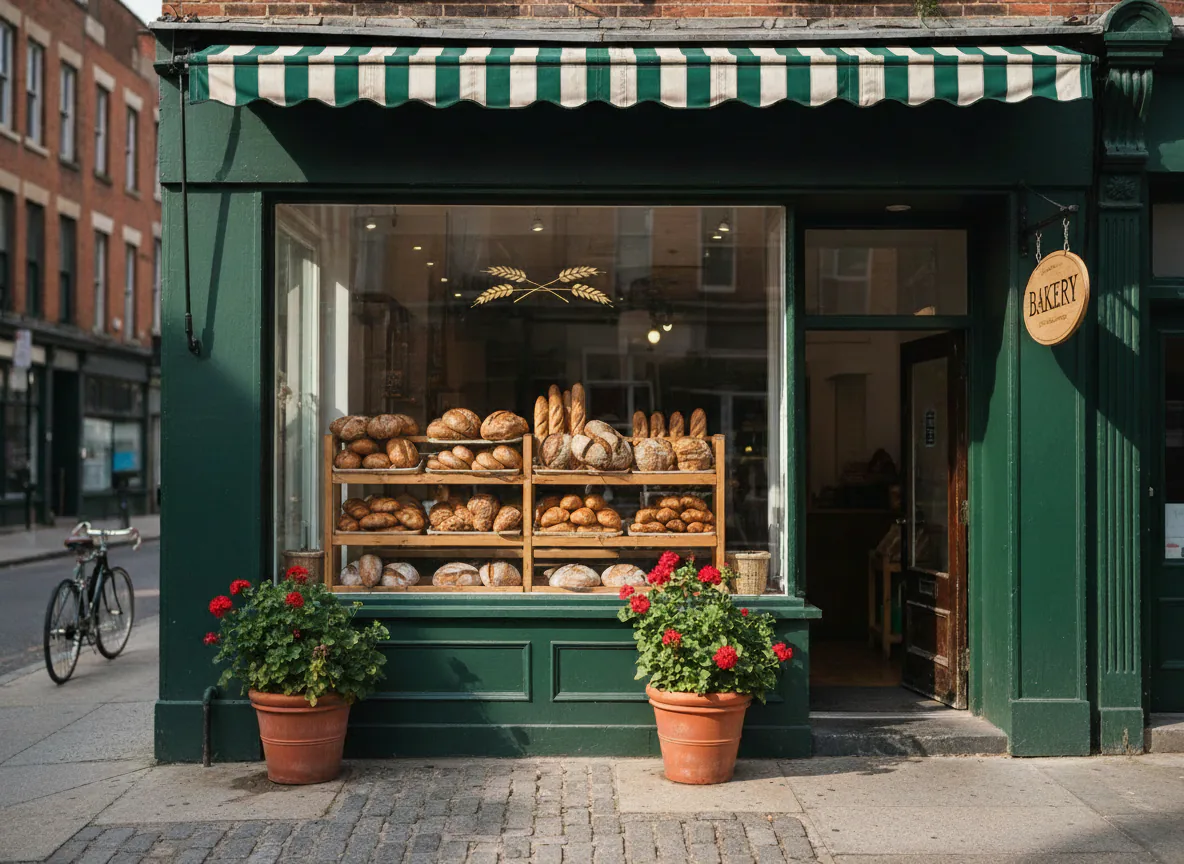
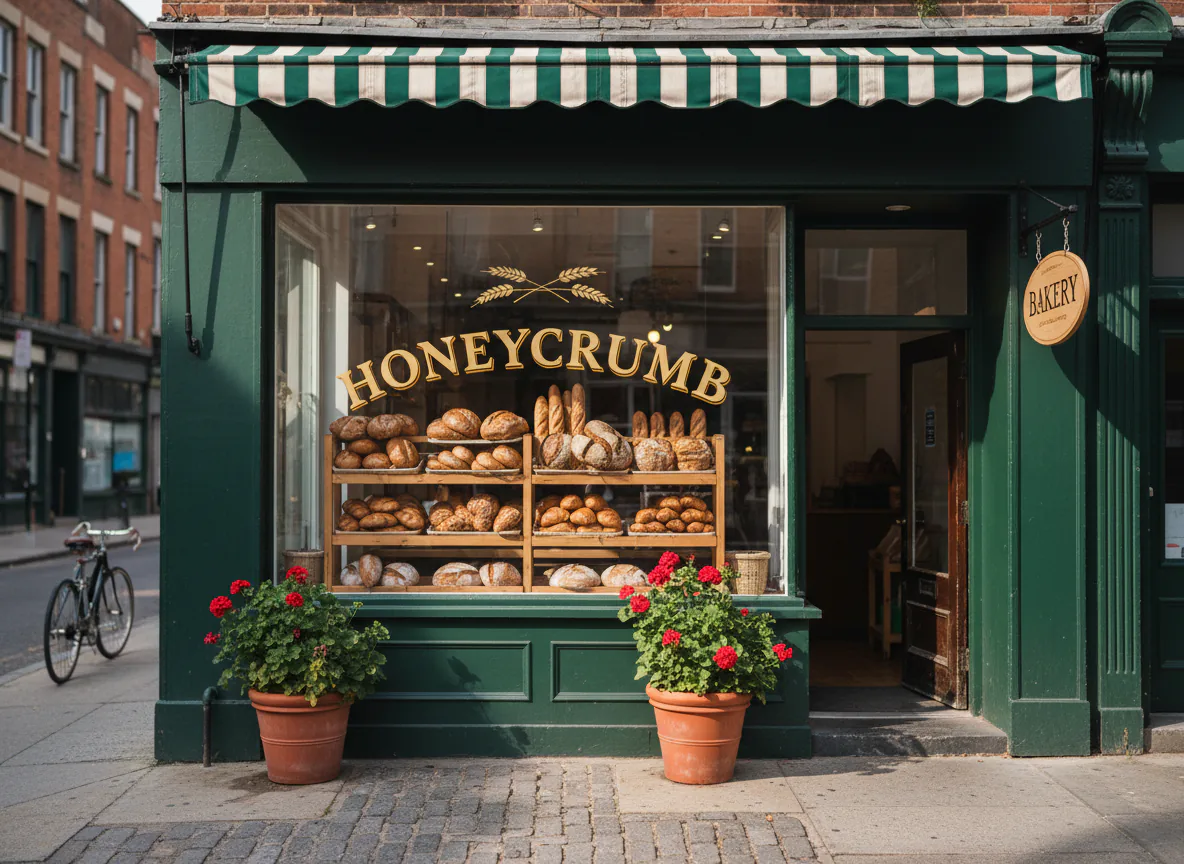
The same bakery window with the painted shop name removed and the rest of the storefront unchanged
Bakery storefront with the invented shop name "HONEYCRUMB" painted in gold on the window and a hanging "BAKERY" sign
BeforeAfter
AI-generated example · Nano Banana edit

Prompt: “the shop name on the window”

How it works

How to remove text from images in three steps

No clone stamp and no healing brush. To remove text from images here, point at the text in a few words, or don’t, and the AI does the retouching.

  1. Step 1

    Upload the image

    Sign in and add a JPG, PNG or WebP of up to 12 MB: a travel photo with a sign, an old print with a date stamp, a product shot with a sticker.

  2. Step 2

    Say which text, if you like

    Leave the box empty to remove every piece of text, or name one, up to 200 characters: “the caption at the bottom”, “the shop name on the window”.

  3. Step 3

    Compare and download

    Drag the slider to check the letters are gone and everything else stayed put, then download the PNG. A faint trace left? Run it again on the result.

Two methods

Two ways to remove text from images

Photos and designs need different tools. Here is how to remove text from a picture either way, and which one to pick.

Method 1

8 credits

Photo method: the text remover

Best for photos with signs, captions, date stamps and labels.

  1. Upload the photo in the tool at the top of this page.
  2. Name the text, or leave the box empty to remove all of it.
  3. The AI erases the letters and repaints what was behind them. Compare, then download the PNG.
Use the text remover

Method 2

7 credits / layer

Design method: hide the text layers

Best for posters, ads, banners and graphics where the text sits on top of the artwork.

  1. Split the design into layers with the HD model. It names each layer, so the text layers are easy to spot (“Title text”, “Price tag”).
  2. Click the eye next to each text layer to hide it. The HD model usually paints in the background behind each element, so the design underneath stays whole.
  3. Download the visible layers as one PNG, or the PSD with every layer kept separate, text included, so you can bring it back later.
Try the design method

Try the design method here

Upload a poster or graphic, split it into layers, hide the text, download. All on this page.

HD · Seedream 5.0 Pro Layerize

Step 1: Upload your design

Click or drop a poster, ad or graphic

JPG, PNG or WebP · up to 12 MB

Sign in or create an account to upload

Works best on flat designs: posters, ads, social graphics and thumbnails. For photos, use the text remover at the top.

Step 2: Split it into layers (HD)

The HD model returns 2–17 named layers, text included, and you pay 7 credits per layer it returns. It takes about one to two minutes.

We hold up to 119 credits, charge 7 per layer returned and refund the rest.

Step 3: Hide the text, then download

In the viewer that opens below, click the eye next to each text layer. Then choose “Download visible layers (PNG)” for a flat image without the text, or “Download PSD” to keep every layer.

Prefer the full layer tool? Open the layer splitter

Real results

Remove text from image examples, before and after

The storefront and caption photos were generated for this page and cleaned with the text remover, using the target shown. The poster used the design method: split into layers, text layers hidden.

  • The same bakery window with the painted shop name removed and the rest of the storefront unchanged
    Bakery storefront with the invented shop name "HONEYCRUMB" painted in gold on the window and a hanging "BAKERY" sign
    BeforeAfter
    AI-generated example · Nano Banana edit

    Bakery window, shop name removed

    Prompt: “the shop name on the window”

    Measured run time: 12 s

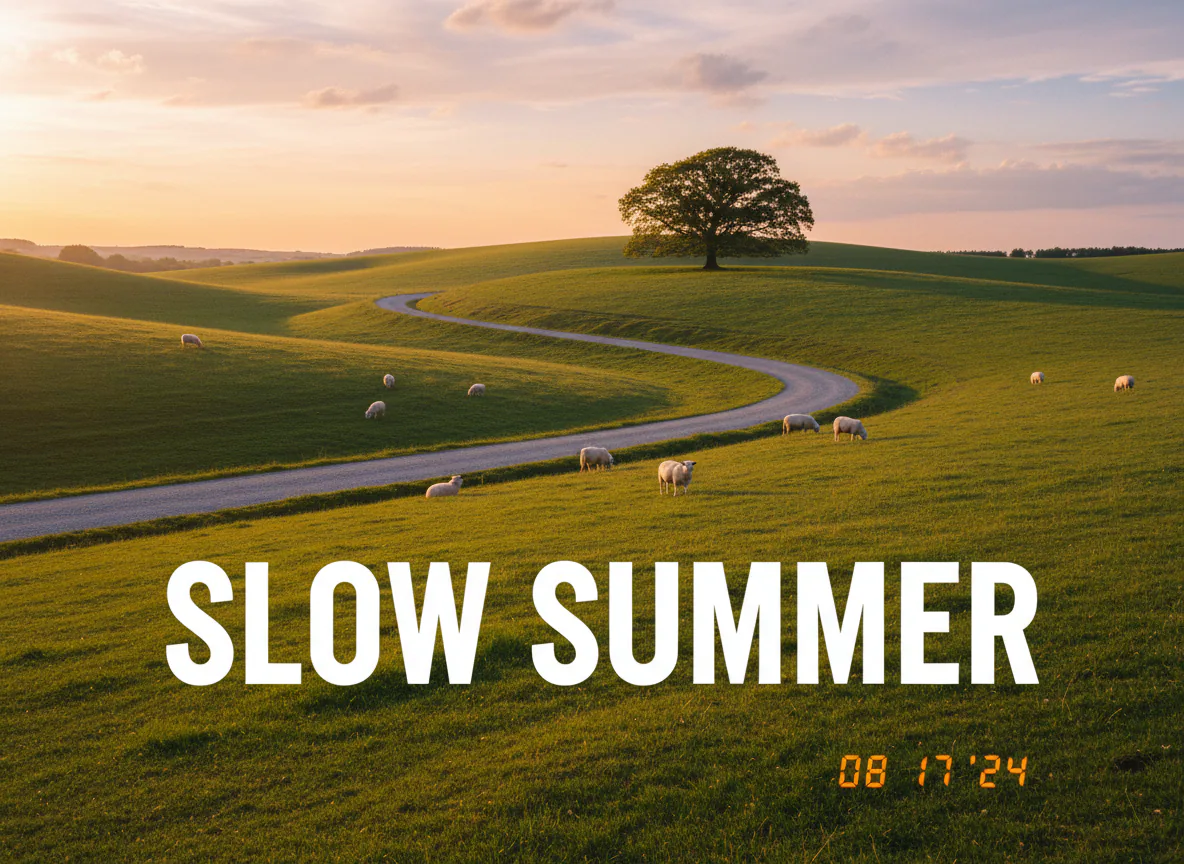
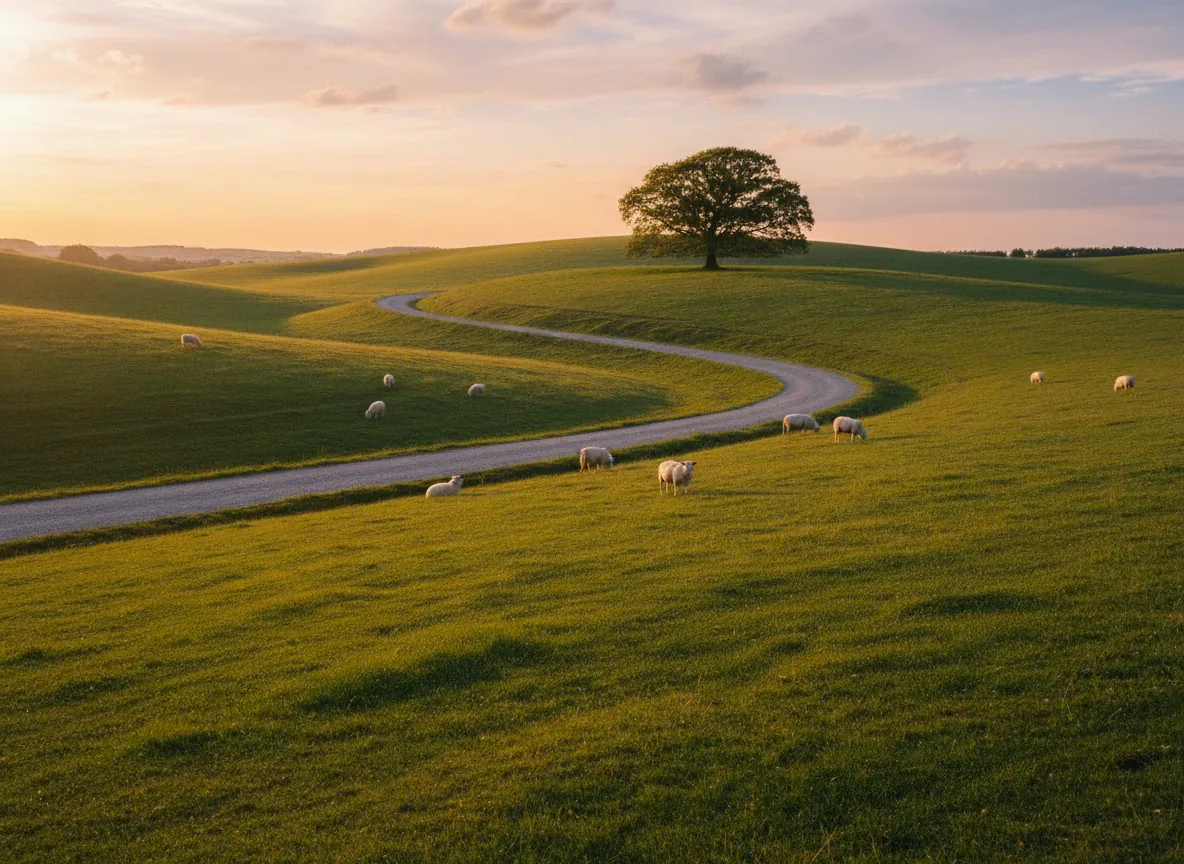
  • The same countryside photo with the caption and the date stamp removed and the road and meadow filled in
    Rolling green hills with a winding road at golden hour, a big white "SLOW SUMMER" caption and an orange date stamp in the corner
    BeforeAfter
    AI-generated example · Nano Banana edit

    Countryside photo, caption and date stamp removed

    Prompt: “the caption and the date stamp”

    Measured run time: 10 s

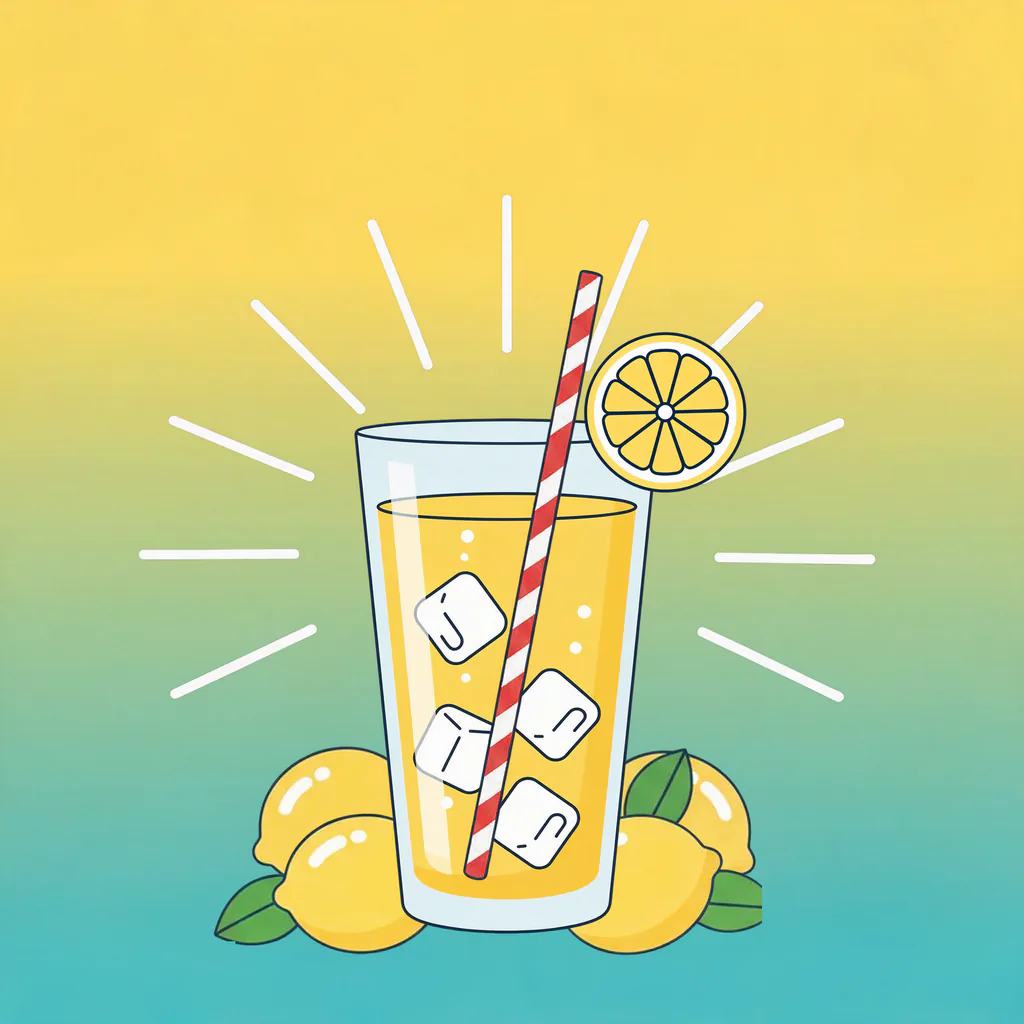
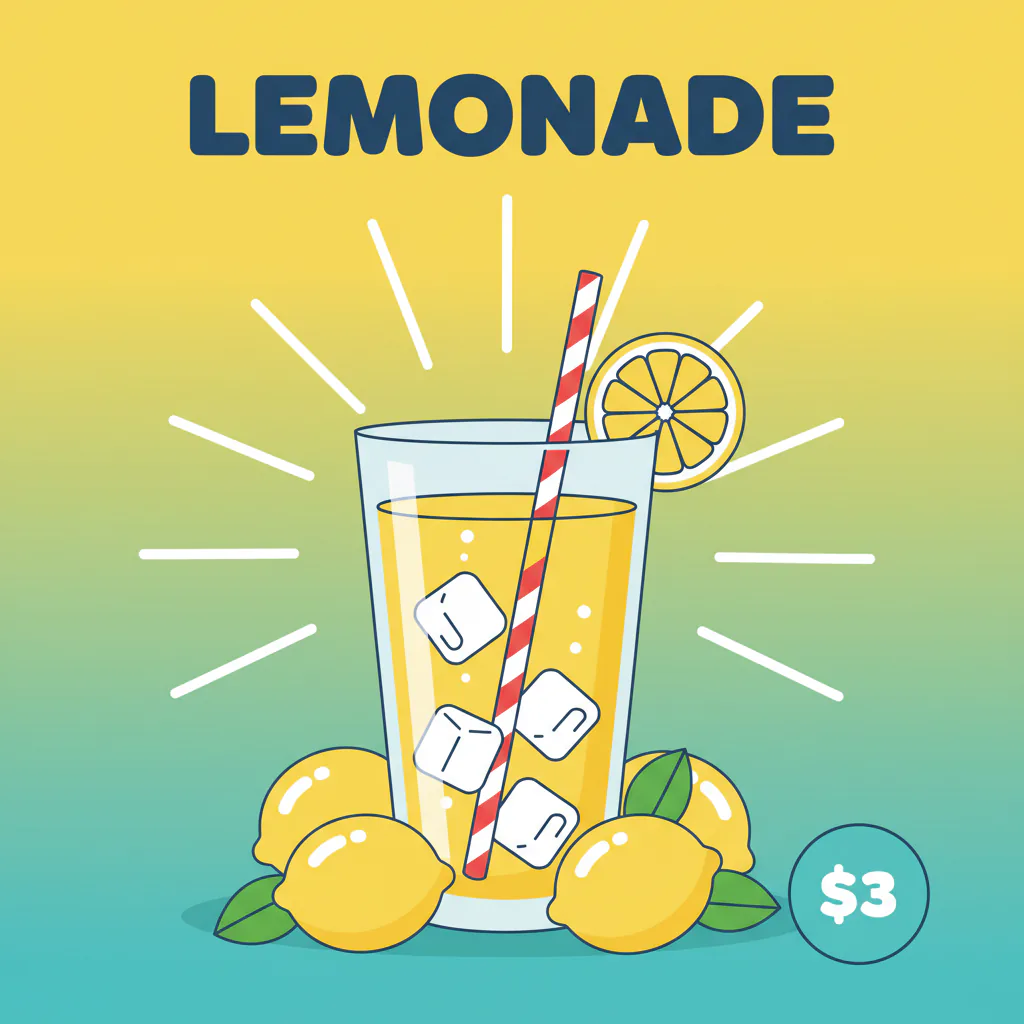
  • The same poster rebuilt from its layers with the title and price layers hidden
    Flat vector lemonade poster with the headline "LEMONADE" and a $3 price badge
    BeforeAfter
    AI-generated example · Seedream 5.0 Pro Layerize

    Poster, text layers hidden

    Layer method · text layers hidden

    Hide the title and price layers

    Measured run time: 90 s

Common jobs

Why people remove text from images

Most of the time it is about reusing a picture you already have, without the words that tie it to one place, date or offer.

  • Date stamps on old photos

    Older cameras printed the date in the corner of every shot. Remove it and keep the memory without the orange digits.

  • Captions on your own images

    Take a caption or a burned-in subtitle off a still or graphic you made, so the image works somewhere new.

  • Signs and shop windows

    Clear shop names, menu boards and posters from street and travel photos, so the shot doesn’t date or advertise someone else.

  • Price tags and stickers

    Remove prices, stickers and short labels from your own product photos before you list or reuse them.

  • Reworking your designs

    Reuse a poster, banner or thumbnail with new wording: take the old text off, then set new type in your editor. The design method leaves the artwork untouched.

  • Blank meme templates

    Strip the top and bottom text from a meme-style photo you own and you have a clean template for new captions.

Honest limits

When you can remove text from images cleanly, and when it is hard

The AI repaints whatever the letters covered. Plain backgrounds are easy; fine detail right next to the text is where it can slip.

Works well

  • Captions, subtitles and date stamps over sky, water, walls or other simple areas
  • Sign and shop-window lettering in travel and street photos
  • Price stickers and short labels on product shots
  • Text on top of a design, with the design method (nothing has to be repainted)
  • Removing one piece of text and keeping the rest, when you name it clearly

Struggles with

  • Stylised, 3D, embossed or neon lettering, which can leave faint traces
  • Text over faces, hands or other detail the model has to redraw
  • Very large blocks of text that cover much of the picture
  • Fine detail next to the letters, such as thin lines, rays or patterns, which can soften
  • Tiny print in a busy scene, where the model may miss a line
  • With the box left on “all text”, small badges, stickers and signs that only carry text are often removed along with it; name the text to keep them
  • Meme-style captions sometimes survive the first run; run the result again naming them, for example “the caption at the top”

Only use it on images you own or have permission to edit. We don’t remove watermarks.

A finished run costs 8 credits whether or not you keep the result; only failed runs are refunded. If a trace remains, run the result again and name just that spot.

FAQ

Remove text from images: common questions

Cost, choosing a method, output size, watermarks and editable text.

Still have a question?

Write to us and we'll get back to you: support@images2layers.com

Upload the picture, type which text should go (“the caption at the bottom”) or leave the box empty to remove all of it, and press Remove text. The AI erases the letters, rebuilds the background behind them and returns one image to compare and download. A run costs 8 credits.

8 credits per image, whether you remove one word or every line. New accounts start with 0 credits; credits come from a one-time pack or a monthly or yearly plan, and failed runs are refunded automatically. The design method is billed as an HD layer split: 7 credits per layer the model returns.

Yes. Name the piece you want gone by position or content: “the date stamp in the corner”, “the price on the tag”, “the shop name on the window”. The rest is meant to stay. If the model takes more or less than you asked for, run it again with a more precise description.

Use the text remover for photos, where the text is part of the scene: signs, labels, captions printed onto the picture. Use the design method for posters, ads and graphics: splitting into layers usually puts the text on its own layers, so hiding them removes the text without repainting anything, and the PSD keeps it in case you need it back.

It is told to change only the text, but it redraws the area under the letters, so fine detail right next to them (thin lines, patterns, small shapes) can soften. Check with the slider before you download. The result keeps your image’s proportions, but its pixel size can differ from your upload.

No. We don’t remove watermarks, and a request that names a watermark or a copyright notice is refused. Use the tool only on images you own or have permission to edit.

The text remover only removes. To add new wording, download the clean image and set your own type in Photoshop, Photopea or any image editor. For a design, the PSD from the design method keeps every layer, so new text can go exactly where the old text was.

No. In the design method the text comes out as pixels on its own layer, not as live type. You can hide it, move it, delete it or paint over it; to change the words, set new text in your editor.

Remove text from images, keep everything else

Upload a photo, name the text or leave it blank, and get a clean image back for 8 credits. Working on a design? Split it into layers and hide the text instead. Failed runs are refunded automatically.