
AI Photo Editor Online — Edit Photos With a Sentence
Upload a photo, plus up to 3 reference photos if you like, write the change in plain words and the AI photo editor returns one edited image. 8 credits per run, no watermark, failed runs refunded.
Step 1: Add your photos
0/4 photosThe first photo is the one edited. Add up to 3 more as references, such as a product or a style.
Click or drop up to 4 photos
JPG, PNG or WebP · up to 12 MB
Sign in or create an account to upload
Presets
Runs need an account and credits (8 per run). Failed runs are refunded automatically.
Example
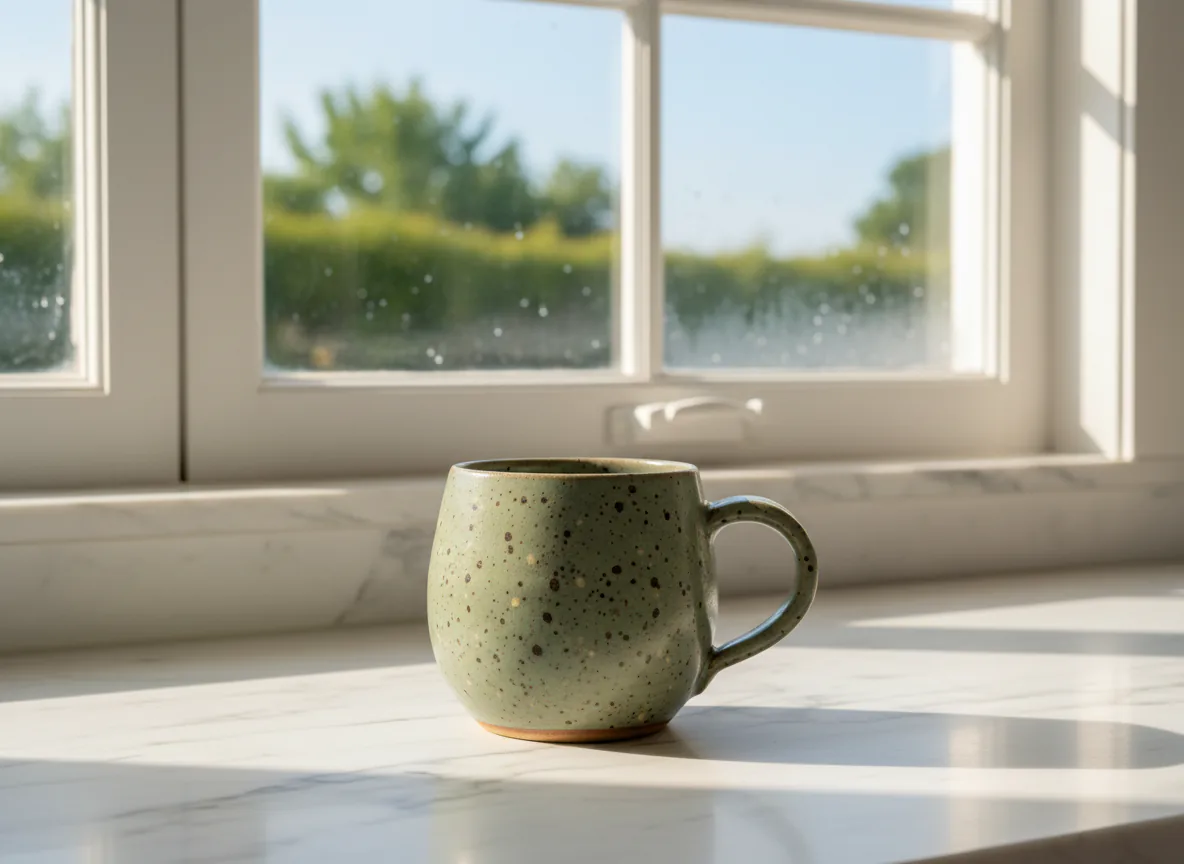
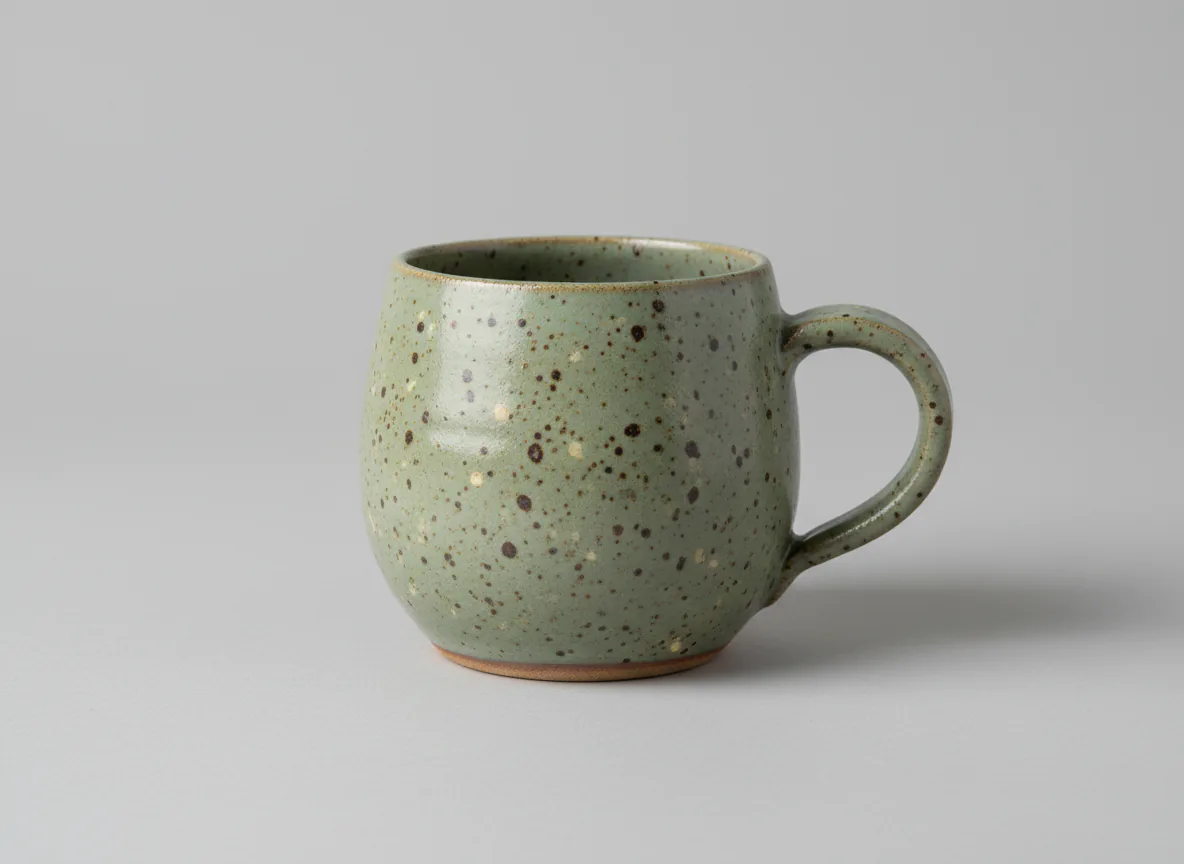
Prompt: “put the mug on a marble kitchen counter by a window, morning light”
How it works
How to edit a photo with the AI photo editor
Three steps, and no masks or layers to set up first.
Step 1
Add your photos
Sign in and upload the photo to edit: a JPG, PNG or WebP of up to 12 MB. Add up to 3 reference photos if the edit needs them.
Step 2
Write one instruction
Say what to change and what to keep: “replace the background with a sunny kitchen, keep the mug exactly as it is”. Or tap a preset.
Step 3
Compare and download
Drag the slider to compare, then download the image. Edit the result again with a new instruction, or split it into layers.
Real results
AI photo editor examples, before and after
Both source photos were generated for this page, then edited with the instruction shown under each one. Drag the handle to compare.
- AI-generated example · Nano Banana editBeforeAfter
Mug moved onto a marble counter
Prompt: “put the mug on a marble kitchen counter by a window, morning light”
Measured run time: 11 s
- AI-generated example · Nano Banana edit
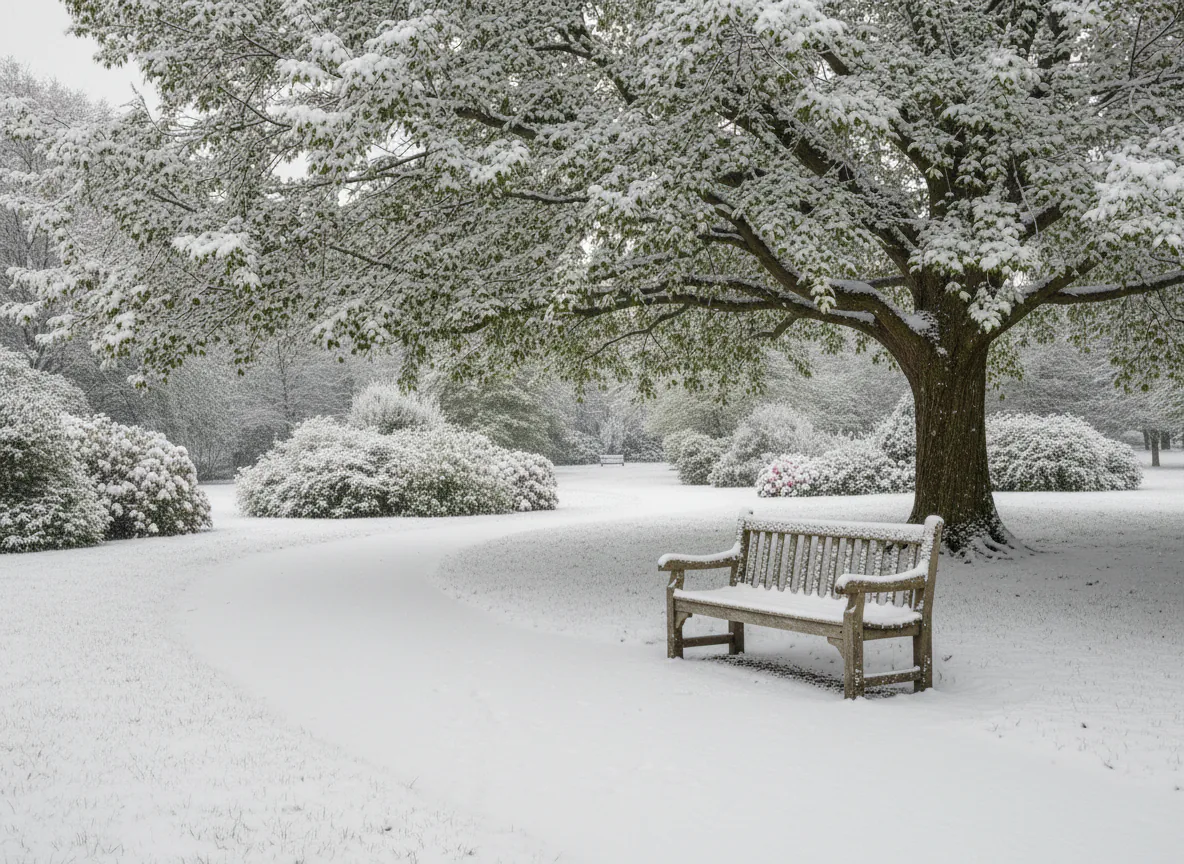 BeforeAfter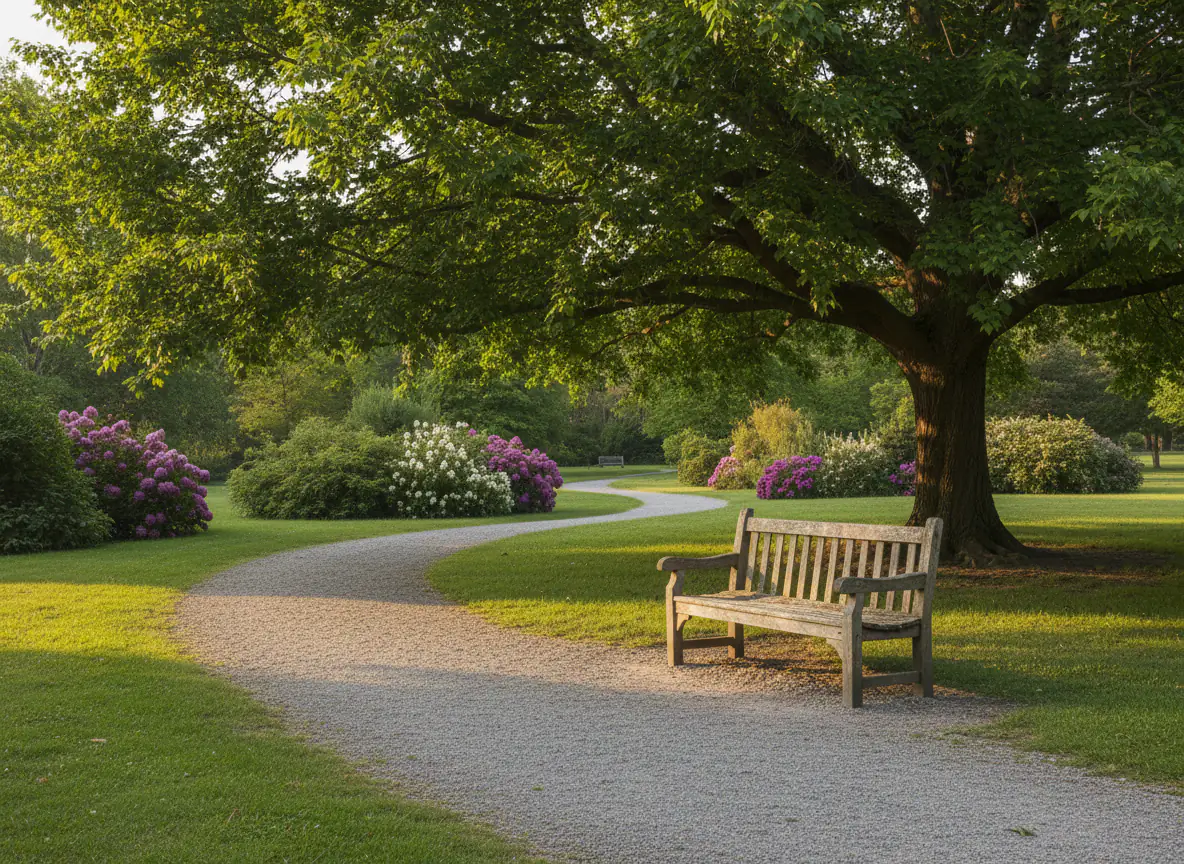
Summer park turned to winter
Prompt: “make it a snowy winter day”
Measured run time: 13 s
What to ask for
Edits the AI photo editor handles in one sentence
Each card has an instruction you can adapt. One clear change per run gives you the most control.
A new background
“Put the product on a marble kitchen counter by a window.” Swap a messy room for a clean setting while the subject stays where it is.
Season and weather
“Make it a snowy winter day.” Change the season, add rain or clear the sky without a reshoot.
Light and mood
“Relight with warm golden-hour sun from the left.” Shift the time of day or soften harsh midday light.
Product scenes
“Place this bottle on a stone plinth with soft shadows.” Turn a plain packshot into a lifestyle image for a listing or an ad.
Quick clean-ups
“Remove the clutter on the desk.” To take out one specific object, the object eraser is more precise and costs 5 credits.
Combine photos
“Put the mug from the second photo on the table in the first.” Reference photos bring a product or a pattern into the scene.
Honest limits
What the AI photo editor does well, and where it struggles
The model redraws the image from your instruction, so it is strongest on overall changes and weakest on exact details.
Works well
- New backgrounds and settings for a product or a person
- Season, weather and time-of-day changes
- Relighting: golden hour, soft studio light, evening
- Turning a plain packshot into a lifestyle scene
- Bringing an object from a reference photo into the scene
Struggles with
- Exact text, logos and small print, which can come out misspelled or redrawn
- Keeping a face exactly the same; always check that a person still looks like themselves
- Precise counts, sizes and positions (“exactly three apples, 2 cm apart”)
- Several unrelated changes in one instruction; make them one run at a time
- Print-size output; check the result’s dimensions before you rely on it
Knowing this saves credits: a finished edit costs 8 credits whether or not you keep it. Only failed runs are refunded.
FAQ
AI photo editor online FAQ
Cost, reference photos, writing instructions and which photos you may edit.
Still have a question?
Write to us and we'll get back to you: support@images2layers.com
Upload a photo and write the change you want. The edit is made by the Nano Banana (Gemini) model, run through fal, and you get one edited image back. There are no masks, brushes or layers to set up; the instruction does the work.
8 credits per run, and each run returns one image. New accounts start with 0 credits; credits come from a one-time pack or a monthly or yearly plan. Failed runs are refunded automatically.
The first photo is the one being edited. Up to 3 more act as references: a product to place in the scene, a pattern, or a style to match. You still get one edited image back.
Say what to change and what to keep: “replace the background with a sunny kitchen, keep the mug exactly as it is”. One change per run gives the most control; make further changes with “Edit this result”.
It can try, but lettering is where it slips most often: words may be misspelled and logos redrawn. Check any text closely, and add final type in a design tool.
Parts you did not ask to change usually stay close to the original, but the whole image is redrawn, so small details can shift. Compare the two with the slider before you download.
Only photos you have the right to edit, and never to mislead: no fake endorsements and no deceptive edits of real people. The terms of service set out what is not allowed.
Yes. “Split into layers” sends the result to the HD layer splitter, which returns named, transparent layers to download as a PSD or PNG ZIP. It is billed 7 credits per layer it returns.
Edit your next photo with one sentence
Upload a photo, write the change, and the AI photo editor returns an edited image for 8 credits, with no watermark. Failed runs are refunded automatically.