
Logo PSD File From a Flat Logo

Upload the flat PNG, JPG or WebP of a logo and get it back as separate transparent layers, often the symbol, the lettering and the background, packed into one PSD for Photoshop, Photopea, GIMP or Affinity.

Example original photo before it is split into layersOriginal
Layer 1Layer 1

Click or drag an image here

Sign in to upload your image

Layer count

Free accounts can use up to 4 layers; subscribers get up to 8.

4
Sign in to generate10 credits
  • JPG · PNG · WebP
  • Up to 12 MB
  • No watermark
  • Layered PSD + PNG ZIP
  • 2–8 layers per image
  • About 1–5 minutes
  • Failed runs refunded

Brand asset workflow

Rebuild a logo PSD from the flat image you have

A logo that only survives as a PNG or a screenshot is hard to change. Upload it here and an AI model divides the artwork into separate transparent layers, so parts such as the symbol, the lettering and the backdrop can be edited apart instead of redrawn. What you get is a logo PSD of pixel layers, not vector artwork.

  • Icon and wordmark apart

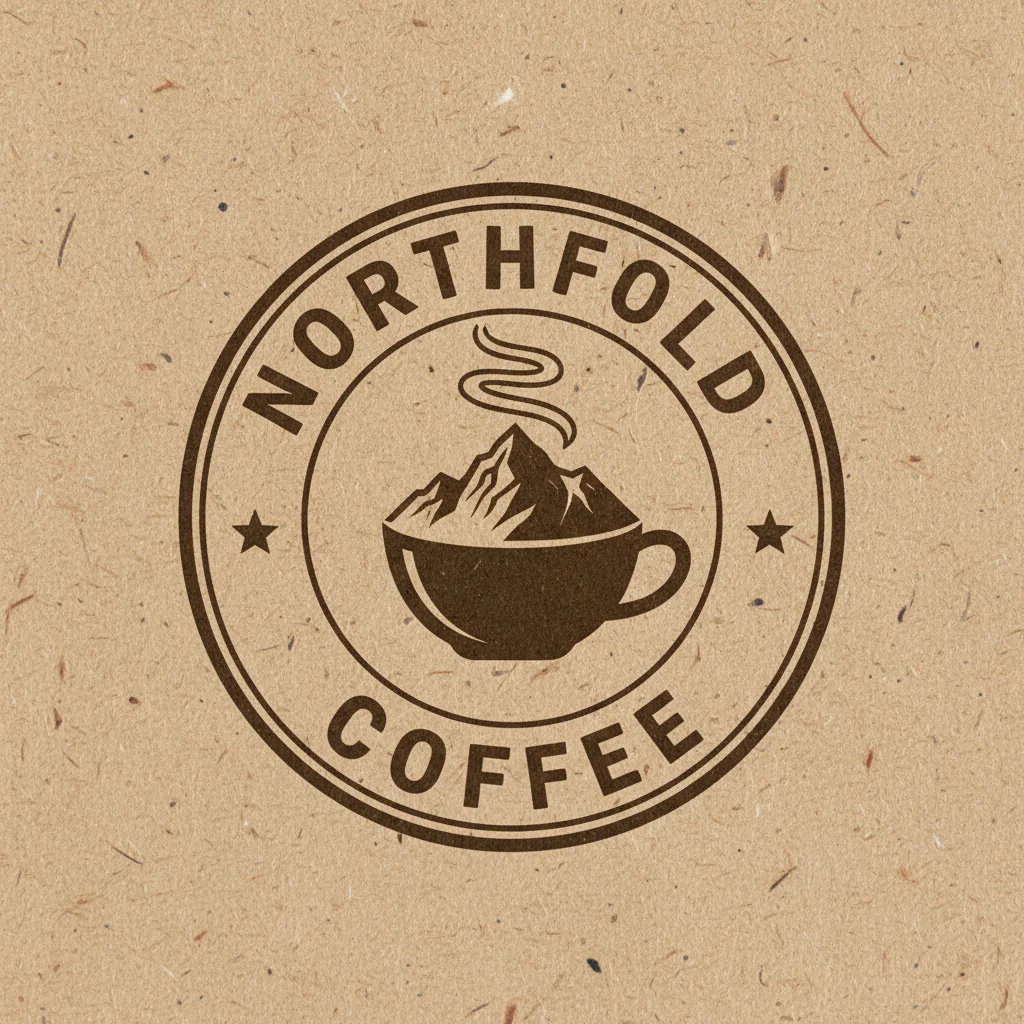
    Where the artwork has visually distinct parts, the model tends to put them on separate layers: the symbol away from the lettering, a badge away from both, and the plate or shadow behind them. Simple, high-contrast marks divide most cleanly.
  • One layered logo PSD

    Export the stack as a single logo PSD that opens in Photoshop, Photopea, GIMP or Affinity with the background at the bottom, or as a ZIP of transparent PNGs if you only need the pieces. Neither download carries a watermark.

  • Edits instead of redraws

    Recolor the symbol, respace the lockup, or hide the old backdrop by working on individual layers. For anything that has to scale crisply, keep the logo PSD as your reference while you redraw the vectors.

Quick answer: what is a logo PSD?

A logo PSD is a Photoshop document that holds a logo as separate layers instead of one flat picture. When the original working file is lost, this tool rebuilds one from a PNG, JPG or WebP. The layers are pixels at the model’s working resolution, ready to edit in your usual PSD editor.

Logo repair flow

From flat PNG to logo PSD in three steps

Start with the cleanest copy of the logo you can find, run it once, and check each layer before downloading. The example shown is a skincare ad rather than a logo file, with one of its layers holding the ad’s wordmark and two badges, but a flat logo goes through exactly the same steps.

Example
Example input: a flat Dawn Serum skincare ad with a serif wordmark, two badges and a dropper bottle on a stone plinth
Example input: a flat skincare ad
Example output layer: the DAWN SERUM wordmark and its Radiance Boost and Deep Hydration badges on a transparent canvas, separated from the skincare ad rather than a logo file
Example layer: an ad’s wordmark, not a logo file
  1. Upload the best logo copy

    Sign in and add a JPG, PNG or WebP of up to 12 MB. Pick the sharpest, least compressed version you have; a logo on a plain background divides more cleanly than one placed over a photo.

  2. Choose the layer count

    Two or three layers suit a symbol and wordmark on a plain background; add more for badges, shadows or glows. Free accounts go up to 4, subscribers up to 8, and every run costs 10 credits.

  3. Export the logo PSD

    Click through the layers, then download the logo PSD or a PNG ZIP. Rename layers, tidy edges and retype any lettering in your own editor.

Use cases

What a layered PSD logo is good for

Most requests start the same way: the mark still has to change, and nobody can find the file it was made in.

  • Lost source file recovery

    A client sends a PNG from an old website and nothing else. Separating it gives you a logo PSD to work in today, and a clear reference if the mark later needs a proper vector redraw.

  • Brand color updates

    When the symbol, lettering and background land on separate layers, each can be recolored without dragging the others along. Check the edges afterwards, since anti-aliased pixels keep a trace of the old color.

  • Layout and spacing fixes

    Move the symbol closer to the wordmark or turn a horizontal lockup into a stacked one by moving layers. A tagline can be dropped the same way when it lands on its own layer.

  • Small digital assets

    Avatars, favicons, slide decks and email signatures usually work at the model’s working resolution, and each separated part can also go out as its own transparent PNG.

Best fit

When a logo PSD is the right fix, and when it is not

Separation depends on the artwork being visually clear enough to divide, and the result is pixels, not paths or fonts.

  • Use it for

    Flat logos that need edits

    Wordmarks, badges, emblems and lockups with distinct parts and clean edges, when the original layered file is missing and a pixel-level edit is enough.

  • Avoid when

    You need vectors or print sizes

    Nothing here traces curves or identifies typefaces, and layers come out at the model’s working resolution: a 1024 × 1024 upload returned 640 × 640 layers. Print, signage and large formats need a proper redraw.

  • Output focus

    Editable pixel layers in one logo PSD

    Each layer can be hidden, moved, recolored or exported without disturbing the rest, in Photoshop, Photopea, GIMP or Affinity, and nothing is watermarked.

Logo questions

Logo PSD FAQ

Sign in, upload the PNG, choose 2 to 8 layers and run it. After one to five minutes, preview the layers and export the logo PSD. It opens in Photoshop, Photopea, GIMP and Affinity with the background at the bottom.

Split your flat logo into editable layers

Sign in, upload the sharpest PNG, JPG or WebP of the mark you have, and download a logo PSD of transparent pixel layers with no watermark. For print or signage, keep it as the reference for a vector redraw.