Short answer: split the picture into depth layers — sky, far background, middle ground, foreground subject — make sure the background is filled in behind everything you cut out, then move each layer at a different speed: far layers barely, near layers the most. In After Effects that means 3D layers and a slow camera move; on the web it means a few stacked images whose transform follows the pointer or the scroll position. An AI layer splitter does the slow part, the cutting and the filling, in a couple of minutes.
Parallax works because your eyes read speed as distance. When you walk past a fence, the posts rush by while the hills behind barely move. Recreate that difference with a few layers of a still image and a flat picture suddenly has depth — the "2.5D" effect you see in documentary title sequences, game menus and landing pages.
The hard part has always been the preparation: cutting each element out by hand and painting in the scenery hidden behind it. That is what this guide speeds up. We'll use the illustration below, which we generated and split with our own tools.
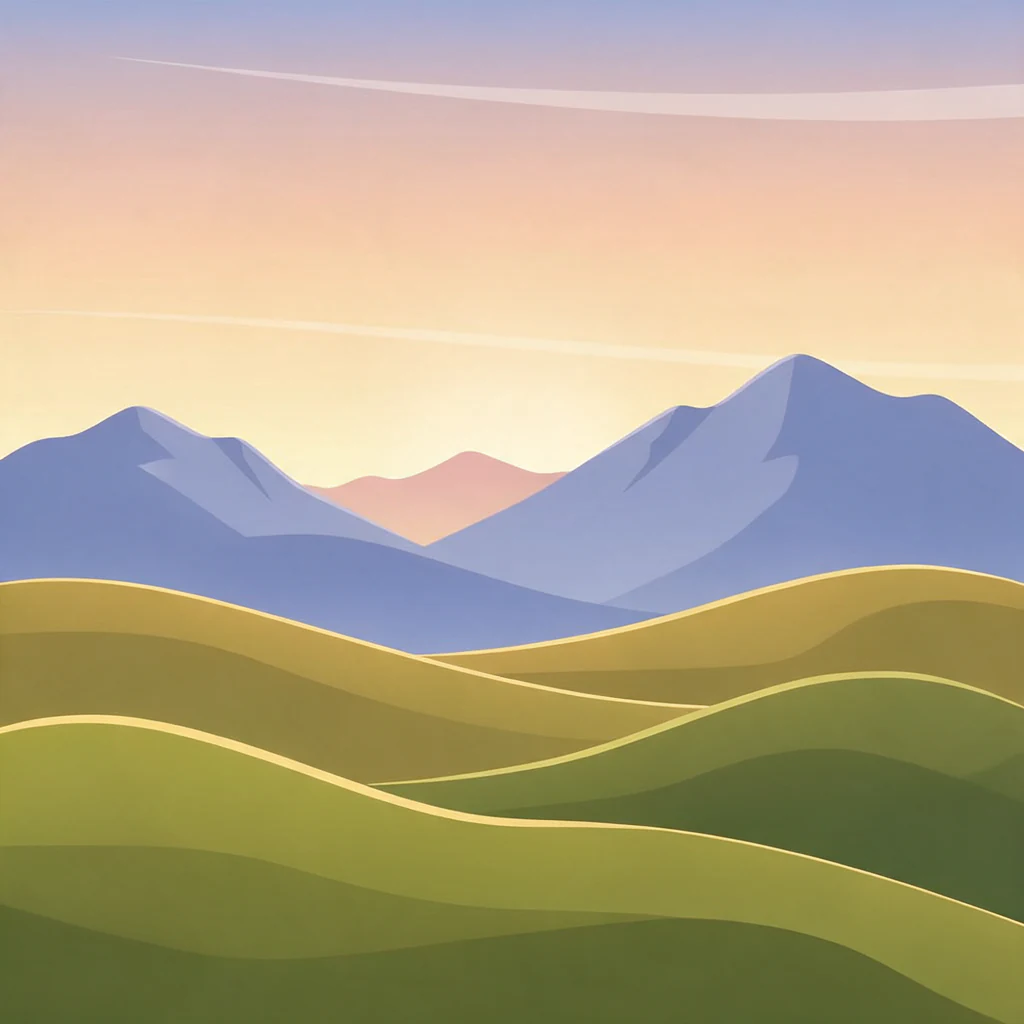
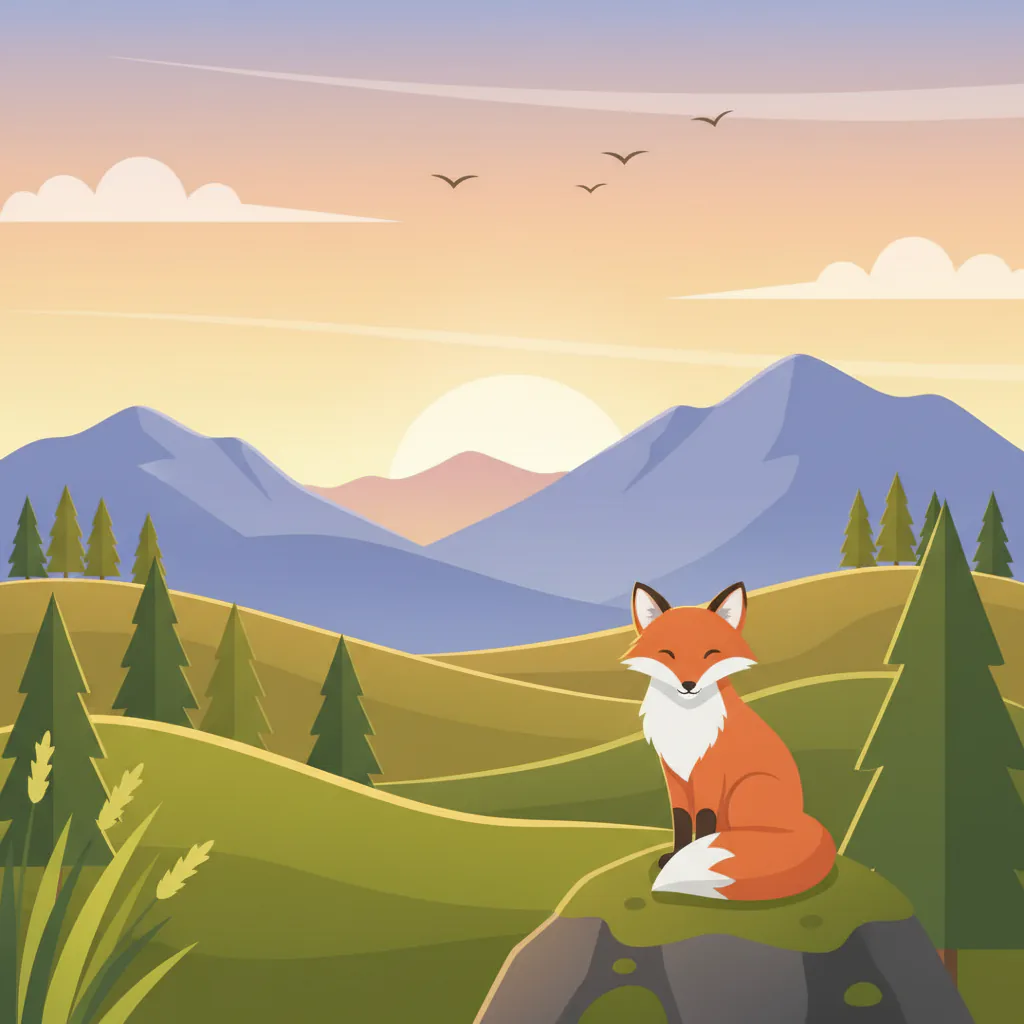 AI-generated example · Seedream 5.0 Pro Layerize
What makes a good parallax image
Not every picture moves well. Before you split anything, check for these:
- Clear depth planes. Landscapes, street scenes, rooms and character art with a distinct background work best. A flat pattern or a close-up texture has no depth to exaggerate.
- A subject that stands apart. The fox on its rock is clearly in front of the hills behind it, so it can move on its own.
- Some room at the edges. Every layer that moves reveals a sliver of what is beyond the frame. Pictures with a little breathing space around the subject are easier to animate than tight crops.
- Few hard materials. Glass, smoke, fine hair against a busy background and heavily overlapping objects are difficult for any automatic split, and they show up in motion.
Text is a special case. A headline comes out of the split as pixels on its own layer, so it moves like any other layer — keep it on a layer with almost no movement, or set it as live text in your animation tool instead.
Step 1: Split the image into layers
Open the layer splitter, upload the image and keep HD (Seedream 5.0 Pro Layerize) selected. HD matters for parallax for two reasons. It decides how many layers the picture needs and names each one, which makes the next step quick. And it usually paints in the background behind the objects it lifts out — without that fill, moving the foreground would uncover a hole.
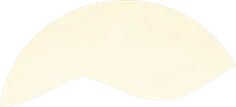
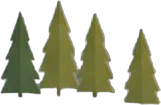
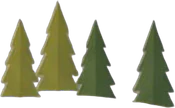
On our illustration, HD returned 12 layers in 135 seconds, named “Background”, “Left sky cloud”, “Right sky cloud”, “Sky sun”, “Sky bird flock”, “Far left small pine group”, “Far right small pine group”, “Midground left pine group”, “Right foreground large pine”, “Bottom left foreground grass”, “Fox sitting rock platform”, “Sitting cartoon fox”. At 7 credits per layer, that run cost 84 credits.
Look at the first tile. The background came back as one clean layer holding the sky, the mountains and the hills, with the fox, the rock, the trees, the clouds and even the sun painted out. That is exactly what parallax needs: whatever moves in front of it, there is scenery behind.
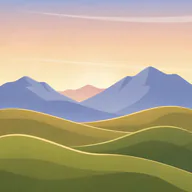
1Background
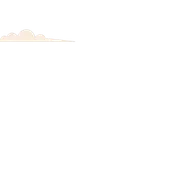
2Left sky cloud
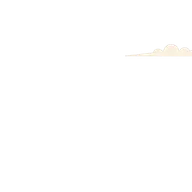
3Right sky cloud
4Sky sun
5Sky bird flock
6Far left small pine group
7Far right small pine group
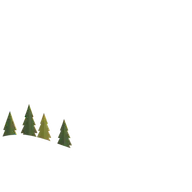
8Midground left pine group
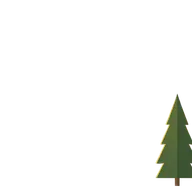
9Right foreground large pine

10Bottom left foreground grass
11Fox sitting rock platform
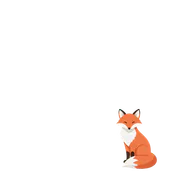
12Sitting cartoon fox
Before downloading anything, preview the effect. The viewer below opens in parallax mode: move your pointer over it, or tilt your phone, and the layers drift at different speeds. Switch to 3D to see the stack from the side.



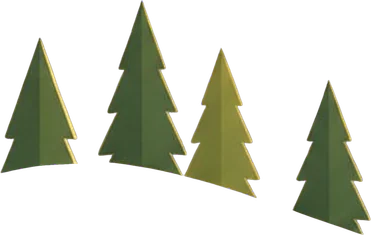
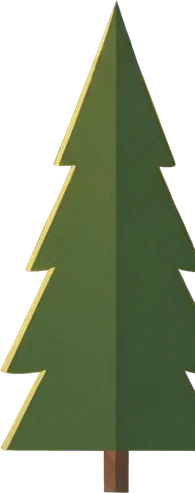
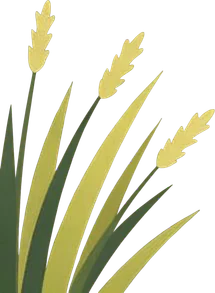
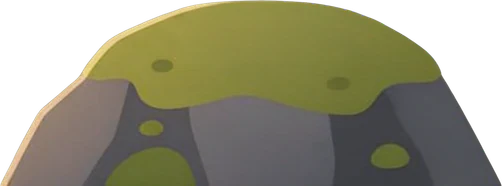
Layers12
Every PNG is full-canvas, so the layers line up.
Step 2: Arrange the layers by depth
Now decide how far away each layer is. A simple scale from 0 (infinitely far, doesn't move) to 1 (closest, moves the most) is enough. For the fox illustration:
- Background (sky, mountains and hills): 0 to 0.05 — it should barely move.
- Clouds and sun: around 0.1.
- Distant pine groups: around 0.25.
- Midground pines: around 0.45.
- Large foreground pine and grass: around 0.8.
- Rock and fox: 0.9 to 1 — give them the same value so the fox stays on its rock.
- Birds: anywhere you like. A slight drift of their own makes the scene feel alive.
If two layers should move together, like the rock and the fox, merge them or give them the same depth. If one layer holds things at different distances, split it in your editor with a mask. Our split kept the mountains and the hills together in the background, which is fine for a gentle move. For a deeper effect, cut the hills away from the mountains along the ridge line and give them their own depth — then extend the mountains a little below the ridge so no gap opens when the hills move.
Then check the holes. Hide each foreground layer and look at what is behind it. HD usually leaves a filled background, but if you see a gap, fix it now: clone from nearby, use your editor's content-aware fill, or simply stretch the layer behind a little wider. Small gaps only show at the extremes of the movement, so you rarely need perfection.
Finally, pick the download that fits your next step:
- Layered PSD — keeps every layer's name and position. Best for After Effects, Photoshop timelines and other motion tools.
- PNG ZIP — every layer as a PNG at the full canvas size, already aligned. Best for the web, because you can stack the files on top of each other without any positioning.
Step 3a: Animate it in After Effects
- Choose File → Import → File, select the PSD and set Import As to Composition – Retain Layer Sizes. Each layer arrives in place, with its name.
- Open the new composition and switch on the 3D toggle for every layer.
- Push the far layers back along Z. For the fox scene, something like background 2000, clouds and sun 1600, distant pines 1000, midground pines 600, foreground pine and grass 250 and the rock with the fox 100 is a good start.
- A layer pushed back looks smaller, so scale it up to compensate: scale = 100 × (zoom + z) ÷ zoom, where zoom is the camera's Zoom value and z the layer's distance. The layer then looks the same size as before but moves like something far away.
- Add a camera with Layer → New → Camera and animate its position over four to eight seconds — a slow push-in or a small sideways move. Keep the movement small: roughly 5–10% of the frame width is plenty.
- Ease the keyframes, switch on motion blur and render.
If an edge appears at the side of the frame during the move, scale that layer up a little more or reduce the camera move.
Step 3b: Build it for the web with CSS
For a website you don't need a video. Stack the PNGs from the ZIP in one container and move each one by its depth when the pointer moves:
<div class="scene">
  <img src="layer-01.png" data-depth="0" alt="">
  <img src="layer-02.png" data-depth="0.15" alt="">
  <img src="layer-03.png" data-depth="0.4" alt="">
  <img src="layer-04.png" data-depth="0.9" alt="">
</div>
.scene {
  position: relative;
  aspect-ratio: 1 / 1;
  overflow: hidden;
}
.scene img {
  position: absolute;
  inset: -4%;              /* a little bleed so edges never show */
  width: 108%;
  height: 108%;
  object-fit: cover;
  transition: transform 0.2s ease-out;
  will-change: transform;
}
@media (prefers-reduced-motion: reduce) {
  .scene img { transition: none; transform: none !important; }
}
const scene = document.querySelector('.scene');
const layers = [...scene.querySelectorAll('img')];

scene.addEventListener('pointermove', (event) => {
  const box = scene.getBoundingClientRect();
  const x = (event.clientX - box.left) / box.width - 0.5;
  const y = (event.clientY - box.top) / box.height - 0.5;
  for (const img of layers) {
    const depth = Number(img.dataset.depth);
    img.style.transform = `translate3d(${x * depth * -40}px, ${y * depth * -40}px, 0)`;
  }
});
Because every PNG in the ZIP has the same canvas size, all layers line up with no extra positioning. For scroll-driven parallax, use the scroll position instead of the pointer, or CSS scroll-driven animations where browsers support them. Convert the PNGs to WebP to keep the page light, and keep the number of moving layers modest on phones.
Common problems and how to fix them
- A hole or a ghost appears behind a moving object. The background behind it wasn't fully filled. Patch it in your editor, or reduce how far that layer moves.
- A light fringe around a cut-out. Shrink the layer's edge by a pixel, or use your editor's defringe command.
- Everything moves as one. The depth values are too close together. Spread them out — the sky should be almost still.
- The motion feels seasick. Use less of it. Subtle movement reads as depth; large movement reads as wobble. Always respect the reduced-motion setting.
- The edges of the frame show. Give the layers more bleed (scale them up) or shorten the move.
Working with character art for animation? The anime PSD page covers splitting characters into body, hair, props and background as a starting point for rigging. And if you are wondering which model to use, read our test of Qwen Image Layered vs Seedream Layerize. To check a layered file without Photoshop, open it in the free PSD viewer.
Try it on your own image
Upload a JPG, PNG or WebP and download its layers as a layered PSD or a PNG ZIP. No watermark, and failed runs are refunded automatically.