Short answer: for most images, pick HD — Seedream 5.0 Pro Layerize. It decides how many layers the picture needs, names every layer and returns them up to 1536 px on the long edge, at 7 credits for each layer it returns. Pick Standard — Qwen Image Layered when you want a fixed, small number of layers for a flat 10 credits and output of about 640 px is enough: quick mockups, social thumbnails, or a rough separation you will refine by hand.
We run both models in production, so we can test them the boring, honest way: same image, same pipeline, numbers from the actual runs. This post walks through one of those runs — a summer drink poster — and explains what the differences mean when you are the one paying for the credits.
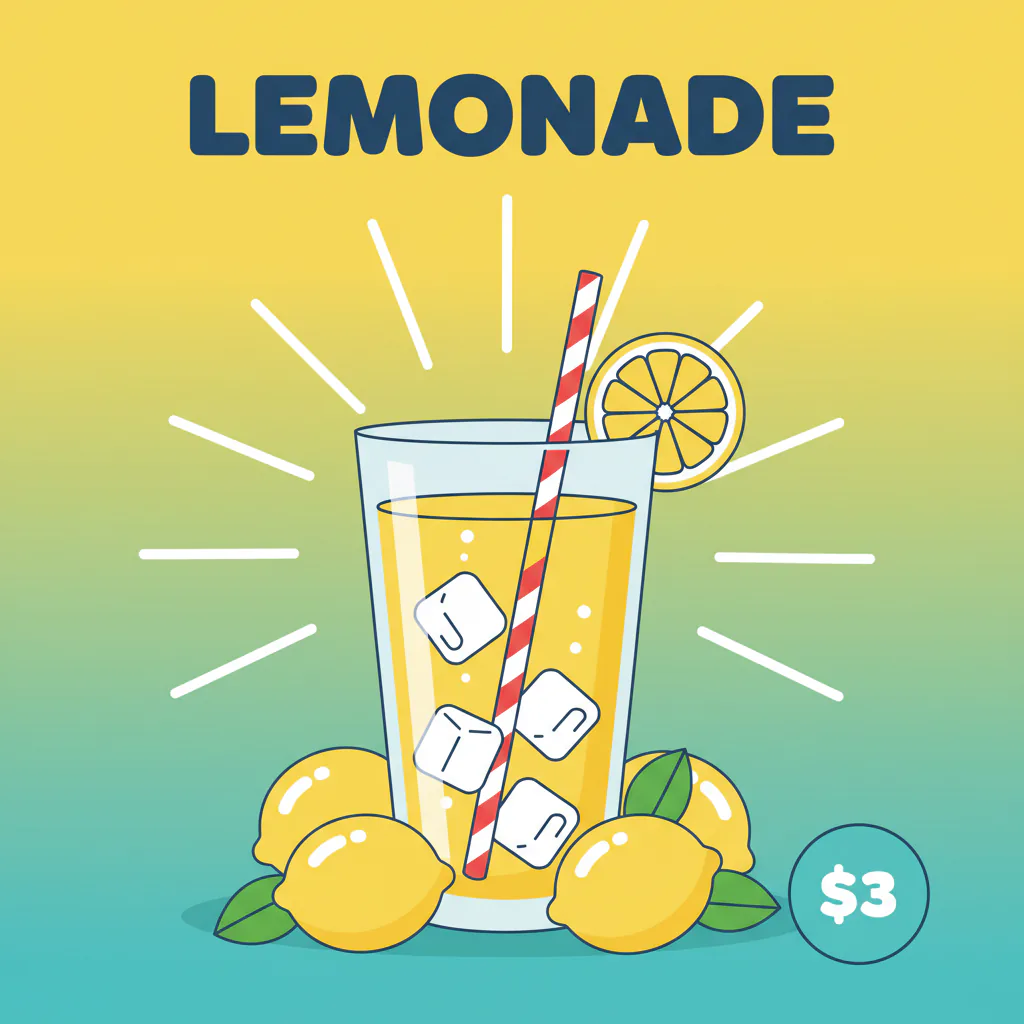 AI-generated example · Seedream 5.0 Pro Layerize
What we tested
Both models do the same job: you give them one flat image and they hand back a stack of transparent PNG layers — background at the bottom, objects and text above it. Both run through fal.ai in our pipeline, and both read the same upload.
- HD is Seedream 5.0 Pro Layerize, run at its
auto_1.5Ksize setting. - Standard is Qwen Image Layered, asked for 4 layers — the default in our tool.
We timed each run from start to finished layers and counted credits the way the tool charges them. One poster is a worked example, not a benchmark, so the interactive viewer below lets you check the result yourself instead of taking our word for it.
The results side by side
| Criterion | HD | Standard |
|---|---|---|
| Model | Seedream 5.0 Pro Layerize | Qwen Image Layered |
| Who picks the layer count | The model (2–17 layers) | You (2–8 layers) |
| Layers returned on this image | 11 | 4 |
| Layer names | Named by the model | Unnamed (Layer 1, Layer 2…) |
| Output size | Up to 1536 px on the long edge | About 640 × 640 px |
| Measured run time | 90 s | 21 s |
| Credits for this run | 77 (11 layers × 7) | 10 (flat) |
| Price rule | 7 credits per layer returned | 10 credits per run, whatever the layer count |
Flip the switch between the two stacks, hide layers, or tilt the stack into 3D to see what each model put where:
HD picks the layer count itself and names every layer, up to 1536 px on the long edge.









Layers11
Every PNG is full-canvas, so the layers line up.
AI-generated exampleSeedream 5.0 Pro Layerize · 11 layers · 90 s
Layer count: who decides
This is the biggest practical difference. HD chooses the count itself. On our poster it returned 11 layers without being asked for any particular number. Seedream picks anywhere from 2 to 17 layers depending on what is in the picture: a simple logo on a plain background comes back with a handful, a busy poster with many more. You can't force a number, but you rarely need to — the count follows the content.
Standard does exactly what you ask. You choose 2 to 8 layers (up to 4 with credit packs, up to 8 with any subscription). That predictability is useful when you want a fixed structure, such as "background plus subject". The catch is that the model has to fit the picture into your number. Ask for 4 layers on an image with a dozen distinct elements and several of them end up sharing a layer — exactly what happened on this poster, as you'll see below. Ask for 8 on a simple image and some layers come back thin or almost empty.
Layer names
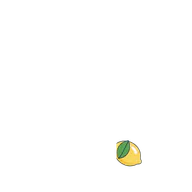
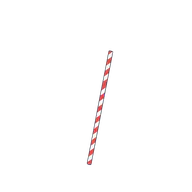
HD names every layer it returns. On the poster, bottom to top: “Background”, “Radial decorative rays”, “Whole lemon left rear”, “Whole lemon right rear”, “Whole lemon left front”, “Whole lemon right front”, “Glass of lemonade”, “LEMONADE title text”, “$3 price tag”, “Lemon slice on rim”, “Red and white striped straw”. Those names travel into the PSD, so the layers panel in Photoshop or Photopea reads like a designer built the file — you find the price badge by its name instead of clicking through eye icons.
Standard returns unnamed layers, which you see as Layer 1, Layer 2 and so on. With three or four layers that is fine. With eight, you will be renaming.

1Background
2Radial decorative rays

3Whole lemon left rear
4Whole lemon right rear

5Whole lemon left front

6Whole lemon right front

7Glass of lemonade

8LEMONADE title text

9$3 price tag

10Lemon slice on rim
11Red and white striped straw

1Layer 1

2Layer 2

3Layer 3

4Layer 4
Resolution
HD returns a base layer up to 1536 px on the long edge. Each object layer arrives cropped to its own bounding box together with its position, and our PSD and ZIP exports put every layer back at its coordinates, so the stack lines up exactly when you open it.
Standard returns layers of about 640 × 640 px, whatever you upload — a 1024 × 1024 upload comes back at 640 × 640. That is enough for a social post, a thumbnail or a rough comp, and soft for print or a large hero banner.
Neither model returns your original resolution. If you need a large final image, keep the layered file for structure and expect to upscale or rebuild the key elements. (The images on this page are scaled down for the web; your own runs download at the model's full output size.)
Speed
On this poster, HD took 90 seconds and Standard 21 seconds. That gap matches what we see generally: HD does more work — choosing the layers, naming them and producing larger files — and usually needs one to two minutes, while Standard has been the quicker of the two in our runs. A busy queue can add time to either, so there is no need to watch the progress bar: leave the page open and come back, and the tool picks the run up again after a reload.
Cost per run
Standard costs a flat 10 credits per run, whether you ask for 2 layers or 8.
HD costs 7 credits per layer it returns. This poster's 11 layers cost 77 credits. Because nobody knows the layer count before the run, HD holds up to 119 credits when it starts (or your whole balance if that is lower, with at least 28 needed to start) and gives back everything it didn't use when the run finishes. If a run fails, all of it comes back. The refund policy has the exact rules.
So HD always costs more per image than Standard — between 14 and 119 credits against a flat 10. The real question is whether named, sharper, more finely separated layers save you more time than the difference. For anything you will open in Photoshop and edit, they usually do; for a quick look at whether an image separates at all, they don't. What a credit costs depends on your plan — see the pricing page.
Separation quality
The layer lists tell the story. Standard, asked for 4 layers, returned the background gradient; the headline together with the sun rays; the entire drink — glass, straw, lemon slice, lemons and leaves — as one layer; and the price badge. That is a perfectly usable split if all you want is to move the badge or swap the background. It is not enough if you want to move a single lemon.
HD gave each of those things a layer of its own: the rays and the headline separately, each of the four lemons, the glass, the lemon slice on the rim, the straw and the price tag. Its background came back as a clean gradient with nothing left on it, so moving an object never uncovers a hole. In both results the headline sits on its own layer, but as pixels: neither model gives you editable type, so plan to retype a headline you want to change.
Standard's edges are also softer at about 640 px. It is still a real separation into transparent layers, and for simple images with one subject and a background it is often all you need.
Both models struggle with the same things: glass and other transparent materials, smoke, fine hair against a busy background, tiny body text and heavily overlapping objects. If your image is mostly made of those, expect to tidy up by hand whichever model you choose.
When to pick which
Pick HD when:
- you will edit the result in Photoshop, Photopea or another editor, or hand it to someone who will — the layer names matter;
- the image is a poster, an ad, a product shot or an illustration with several distinct objects and some text;
- you need more than about 640 px — for a website hero, a slide or anything larger than a thumbnail;
- you don't know how many layers the picture really has.
Pick Standard when:
- you want an exact number of layers, such as a subject and a background;
- the output is small anyway — a social post, a thumbnail, a quick comp;
- you are separating many simple images and a flat price per image matters more than detail.
How to run either one
- Open the layer splitter and upload a JPG, PNG or WebP of up to 12 MB.
- Leave HD selected, or switch to Standard and set the number of layers.
- Preview the stack flat, in 3D or as a parallax, hide layers you don't need, then download a layered PSD, a PNG ZIP with every layer at full canvas size, or single PNGs.
No Photoshop? The free PSD viewer opens the file in your browser so you can check every layer before you download anything else.
Next, see what layers make possible: how to make a parallax effect from a still image.
Try it on your own image
Upload a JPG, PNG or WebP and download its layers as a layered PSD or a PNG ZIP. No watermark, and failed runs are refunded automatically.